
Overview
The Outstanding Approvals Report displays a comprehensive list of all outstanding approvals for ideas/initiatives progressing through the pipeline, including the age of each approval request. This report helps users track pending approvals, identify bottlenecks in the approval process, and ensure timely action on approval requests. The report provides visibility into which ideas/initiatives are awaiting approval, who requested the approval, who needs to approve, and how long the approval has been pending.
The report is particularly useful for monitoring approval delays, prioritizing approval actions, ensuring ideas/initiatives move through stages without unnecessary delays, and maintaining accountability in the approval process.
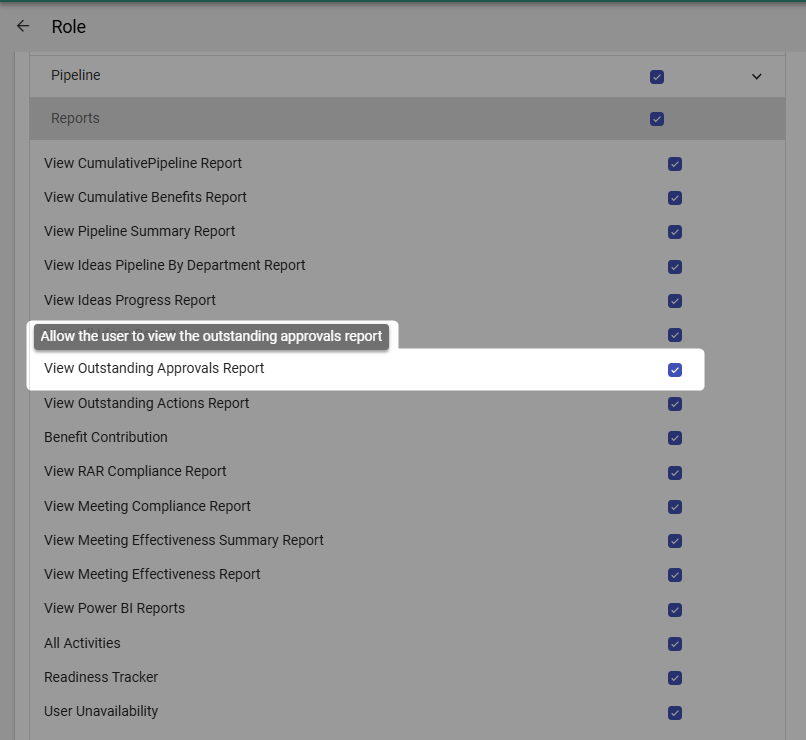
Note: Users need the View Outstanding Approvals Report permission enabled in their role under Reports to be able to access and use this report. If you cannot view this report, please contact your system administrator to verify your permissions.
Accessing the Outstanding Approvals Report
To access the Outstanding Approvals Report:
- Navigate to the Reports module from the top navigation bar
- Select Outstanding Approvals from the list of available reports within the Ideas group
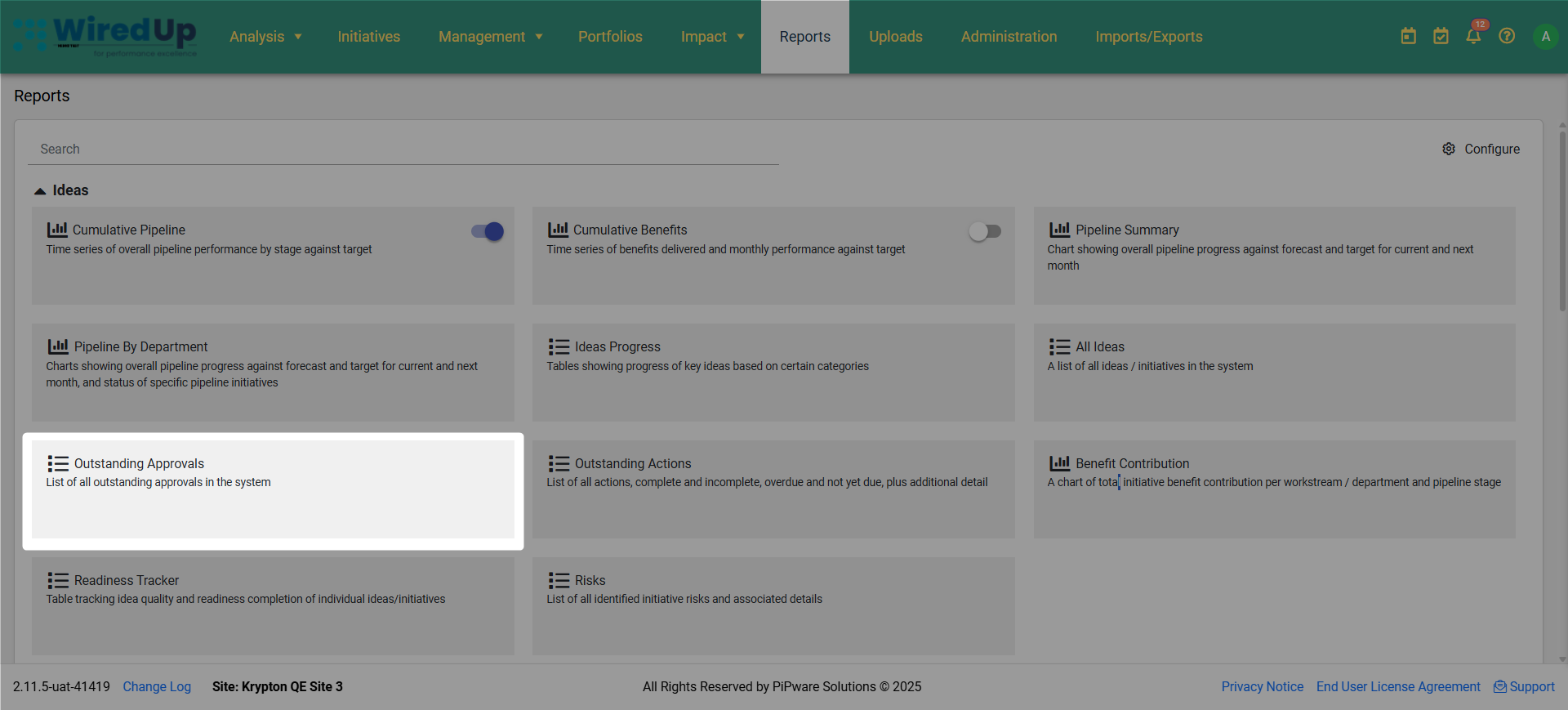
- The report will display with default filters applied, showing all outstanding approvals in a table format
Understanding the Report
The Outstanding Approvals Report consists of a table displaying all pending approval requests for ideas/initiatives.
Report Header
At the top of the report, a summary line displays: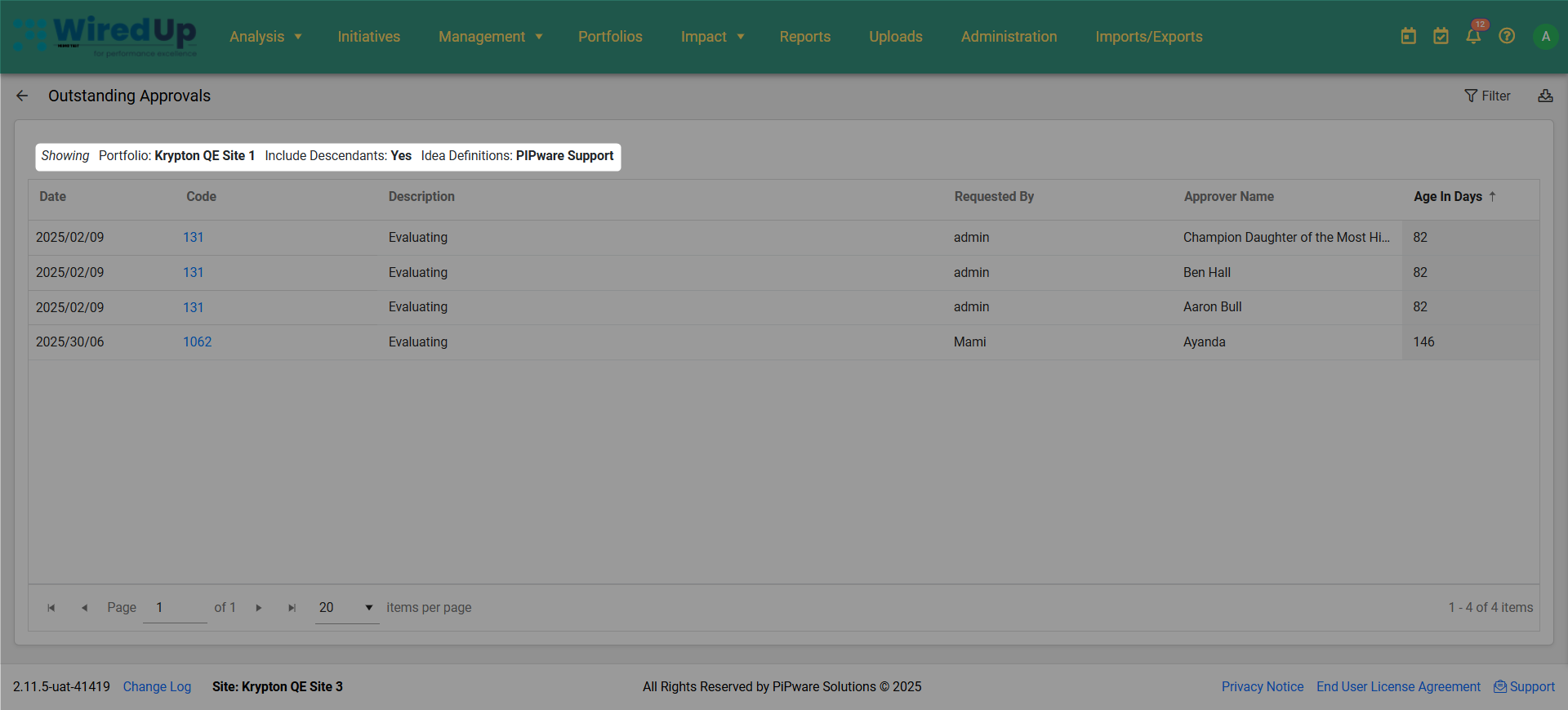
- No filter: Appears when no filters are currently applied
- Showing [filter criteria]: Displays the selected filter criteria when filters have been applied
Table Columns
The report displays the following information in table format: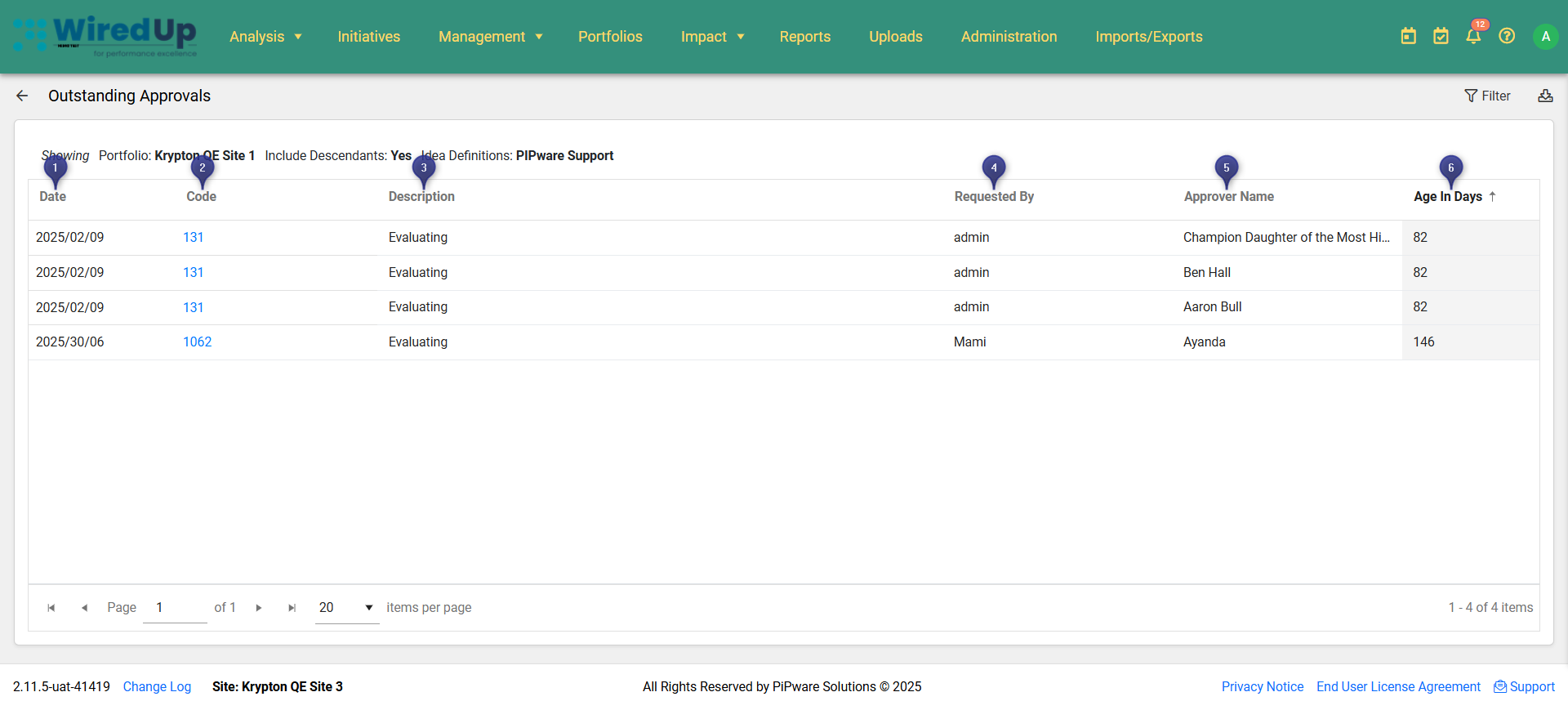
- Date: The date when the approval was requested
- Code: Unique identifier for the idea/initiative. Click on the code to navigate directly to the idea/initiative details
- Description: The name or description of the approval workflow/checklist
- Requested By: The name of the user who submitted the approval request
- Approver Name: The name of the user who needs to approve the request
- Age in Days: The number of days since the approval was requested, helping identify overdue or aging approvals
Table Features
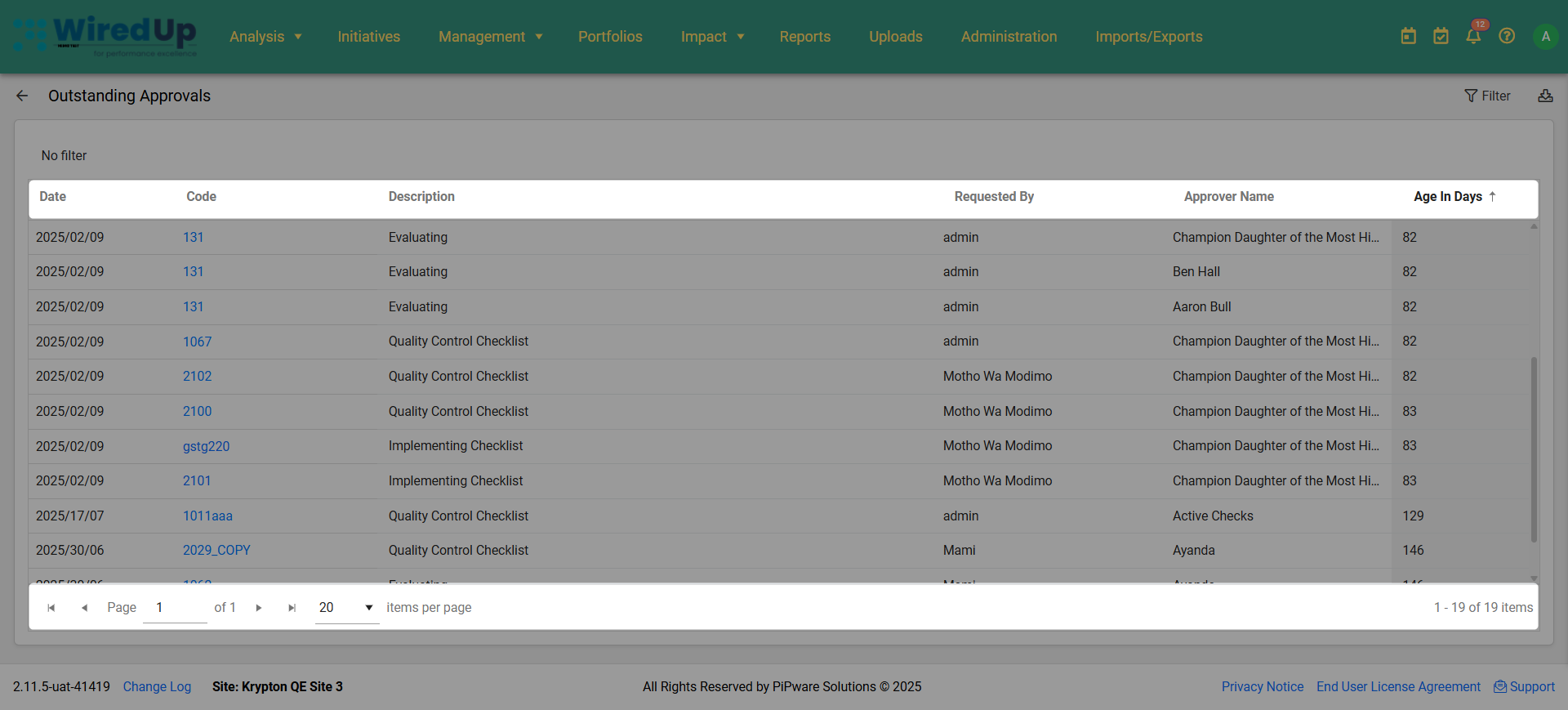
- Sorting: Click on any column header to sort the table by that column (ascending or descending order)
- Pagination: Use the pagination controls at the bottom of the table to navigate through multiple pages of results
- Items per page: Adjust the number of items displayed per page using the dropdown menu (default is 20 items per page)
- Total count: The bottom right of the table displays the total number of outstanding approvals (e.g., "1 - 19 of 19 items")
Report Filters
The Outstanding Approvals Report includes several filters to customize the data displayed. These filters appear in the Filter panel on the right side of the screen when you click the Filter button.
Applying and Clearing Filters:
- Click the Filter button (top-right corner) to apply your selected filter criteria
- Click the Clear button to reset all filters to their default values
- When no filters are applied, the message "No filter" appears at the top of the report
- Once filters have been applied, they will be displayed at the top of the report showing the selected filter criteria
Available Filters:

Portfolio
- Select the specific portfolio, department, or site to view
- Include Descendants checkbox: When enabled, includes all sub-portfolios and departments under the selected portfolio
- Allows you to focus on outstanding approvals from specific organizational areas
Idea Definitions
- Filter by specific idea definition types configured in your system
- Default setting shows "All" idea definitions
- Useful for focusing on approvals for particular categories of ideas/initiatives
More Filters
- Additional filtering options based on custom idea fields configured in your system's Administration settings under Administration > Ideas/Initiative Fields
- These filters are dynamically generated based on your organization's specific idea field configurations
Downloading the Report
The Outstanding Approvals Report can be exported for offline viewing, sharing, or further analysis: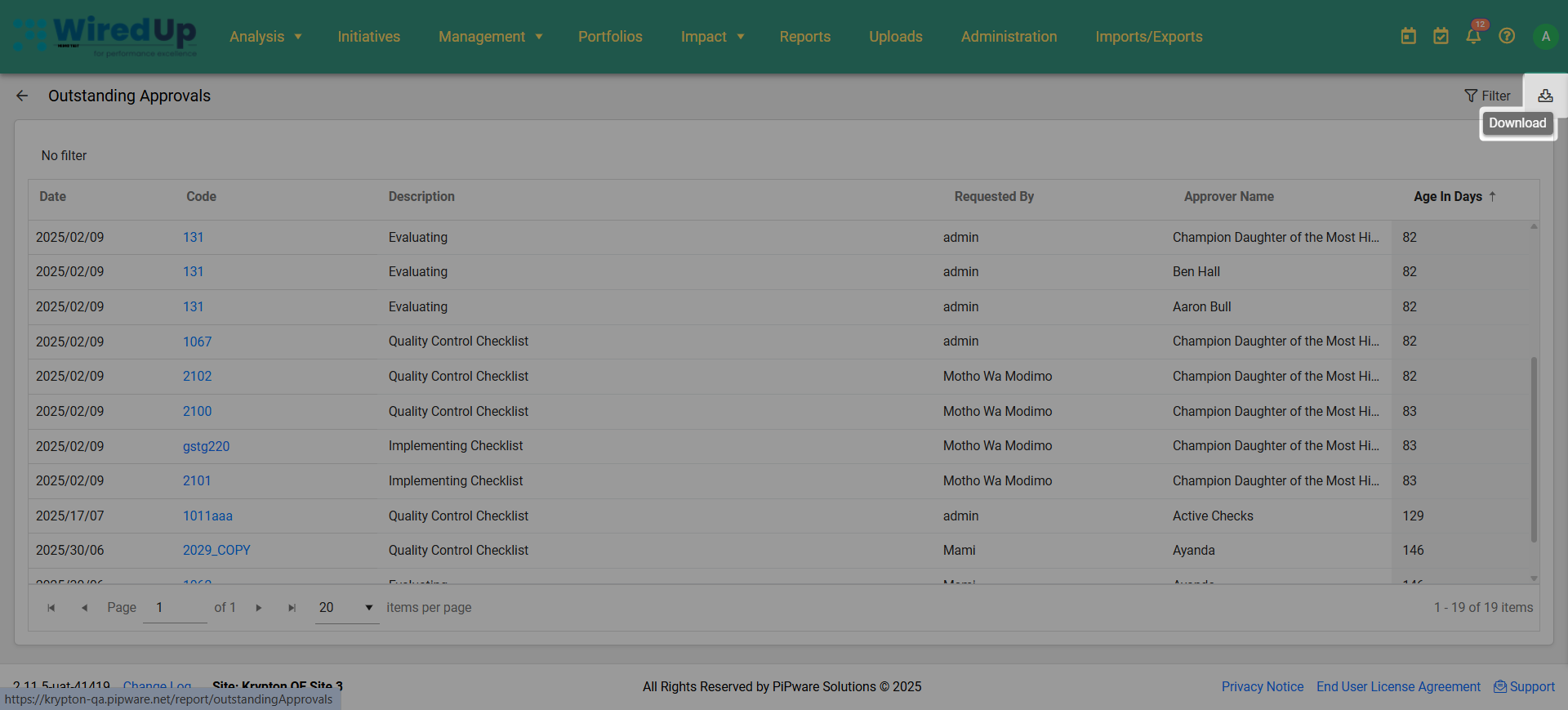
- Click the Download button in the top-right corner of the report
- The report will be exported in Excel format
- The downloaded file will include all currently applied filters and all visible outstanding approval data
The Excel export allows you to:
- Perform additional analysis on approval data
- Share the report with stakeholders who may not have system access
- Track approval trends over time by saving periodic exports
- Identify patterns in approval delays
- Create custom reports or dashboards using the exported data
- Monitor approver workload and response times
Best Practices
- Review the report regularly to identify and address approval bottlenecks in the pipeline
- Sort by "Age in Days" to prioritize the oldest pending approvals that may be causing delays
- Monitor high-value ideas/initiatives by clicking on codes to review details and follow up on critical approvals
- Use Portfolio filters to analyze approval performance across different organizational areas
- Track approver workload by reviewing the "Approver Name" column to identify users with multiple pending approvals
- Follow up on aging approvals by contacting approvers directly when requests have been pending for extended periods
- Download and archive reports periodically to maintain historical records of approval performance
- Set internal approval timeframes and use the "Age in Days" column to monitor compliance
- Identify patterns in approval delays to address systemic issues in the approval process
Related Articles
Based on the knowledge base, you may also find these related articles helpful:
- Ideas/Initiative Progress Report
- Ideas Pipeline By Department Report
- All Ideas Report
- Idea Approvals