
In This Article
Accessing the Log-In Activity Report
Overview
The Log-In Activity Report provides a comprehensive record of user login activity to the WiredUp system. This report helps administrators and managers monitor user access patterns, track system usage, and ensure security compliance by displaying detailed information about when users logged into the system and which sites they accessed. The report is particularly useful for auditing user activity, identifying inactive users, monitoring access across multiple sites, and maintaining security oversight.
The report displays login records in a table format, showing user details, login dates, and site access information. This enables organizations to track user engagement, verify access permissions, and identify any unusual login patterns that may require attention.
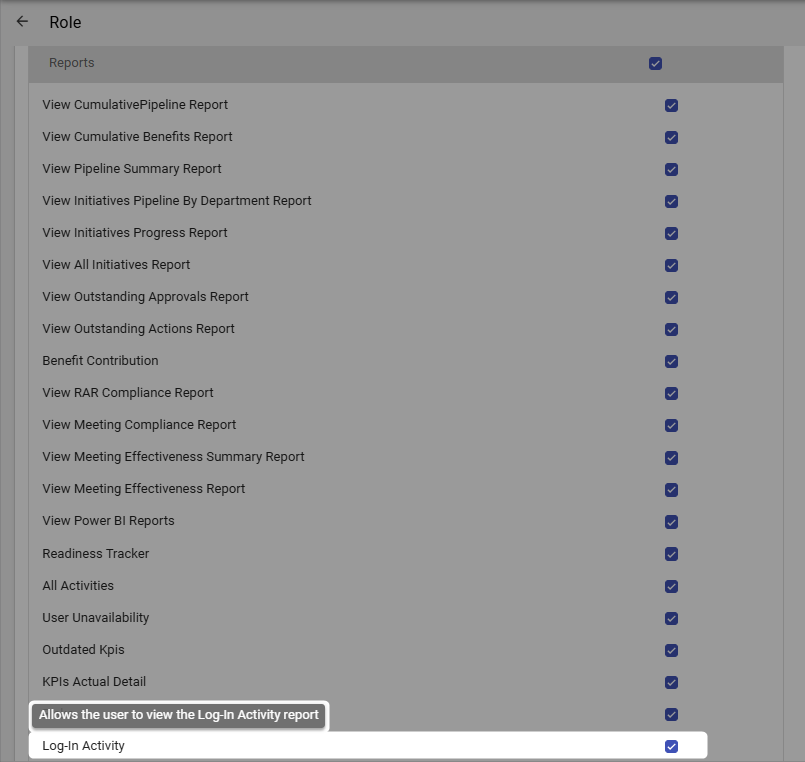
Note: Users need the Log-In Activity permission enabled in their role under Reports to be able to access and use this report. If you cannot view this report, please contact your system administrator to verify your permissions.
Accessing the Log-In Activity Report
To access the Log-In Activity Report:
- Navigate to the Reports module from the top navigation bar
- Select Log-In Activity from the Administration group
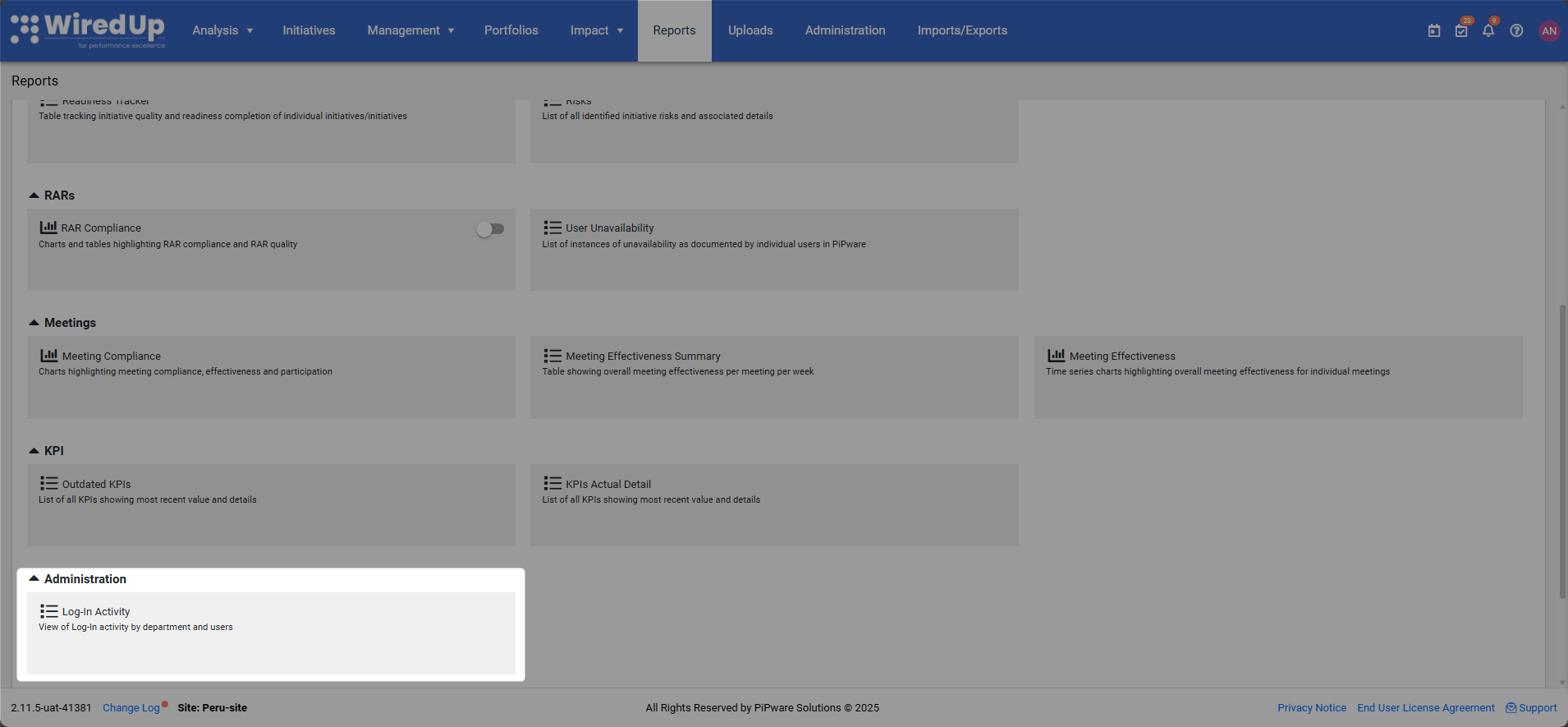
- The report will display with default filters applied, showing all recent login activity in a table format
Understanding the Report
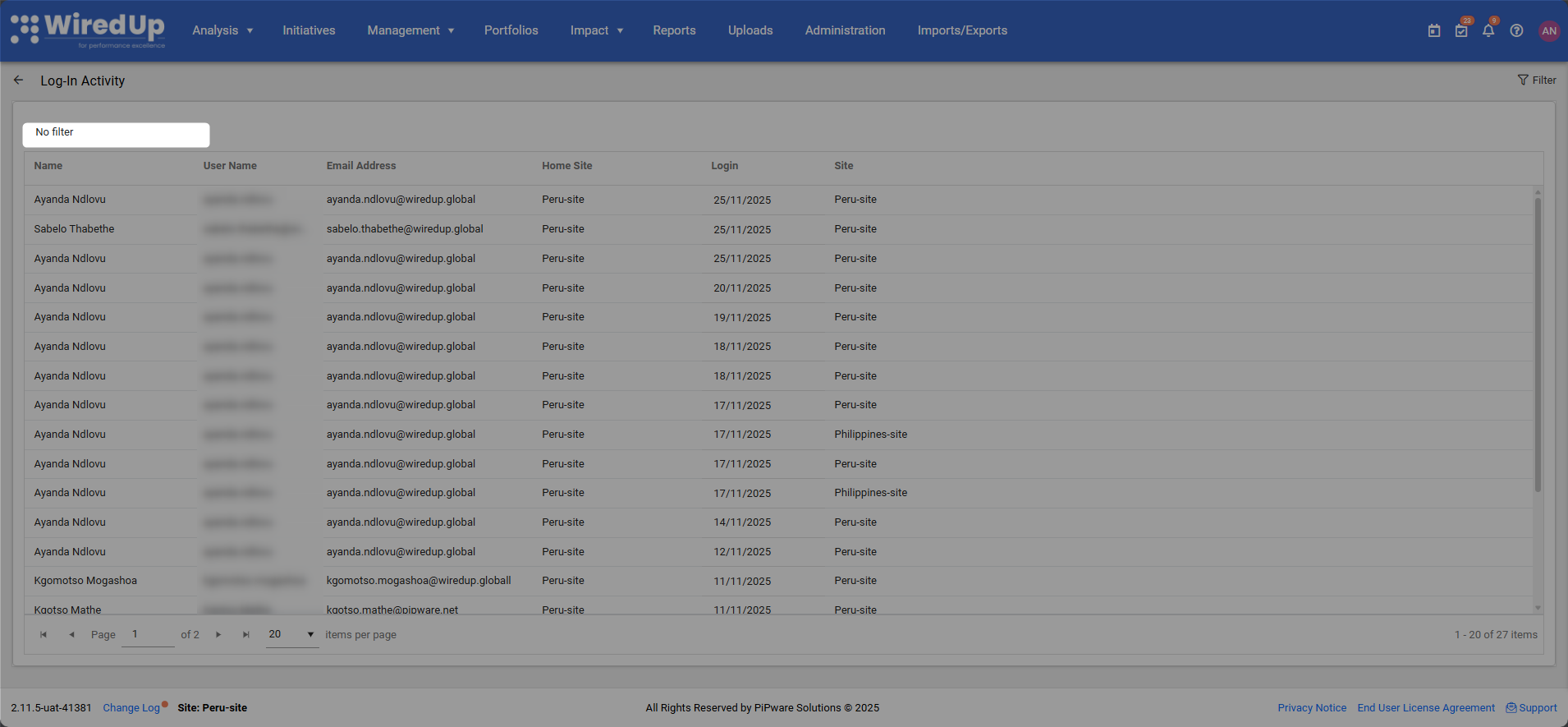
The Log-In Activity Report consists of a table displaying detailed login records for all users.
Report Header
At the top of the report, a summary line displays:
- No filter: Appears when no filters are currently applied
- Showing [filter criteria]: Displays the selected filter criteria when filters have been applied
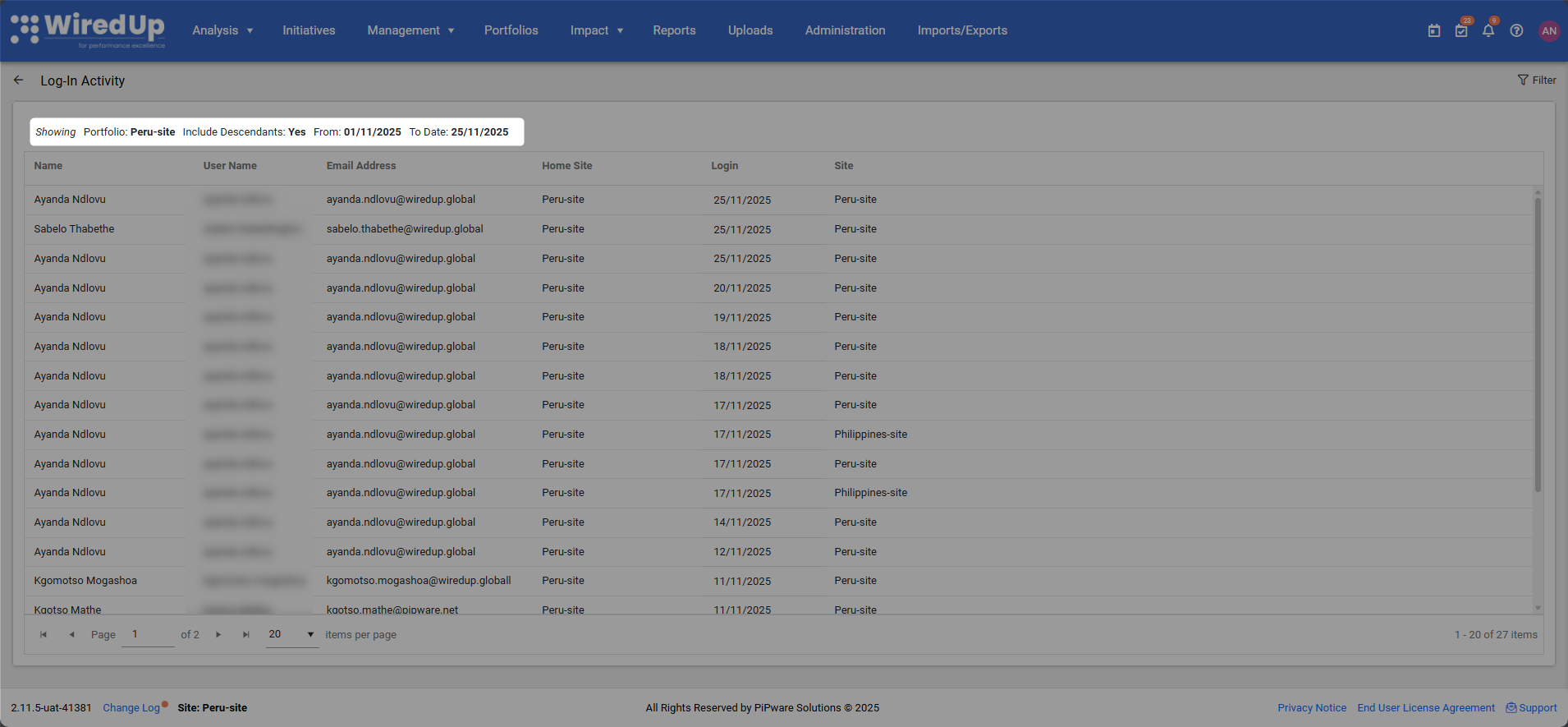
Table Columns
The report displays the following information in table format: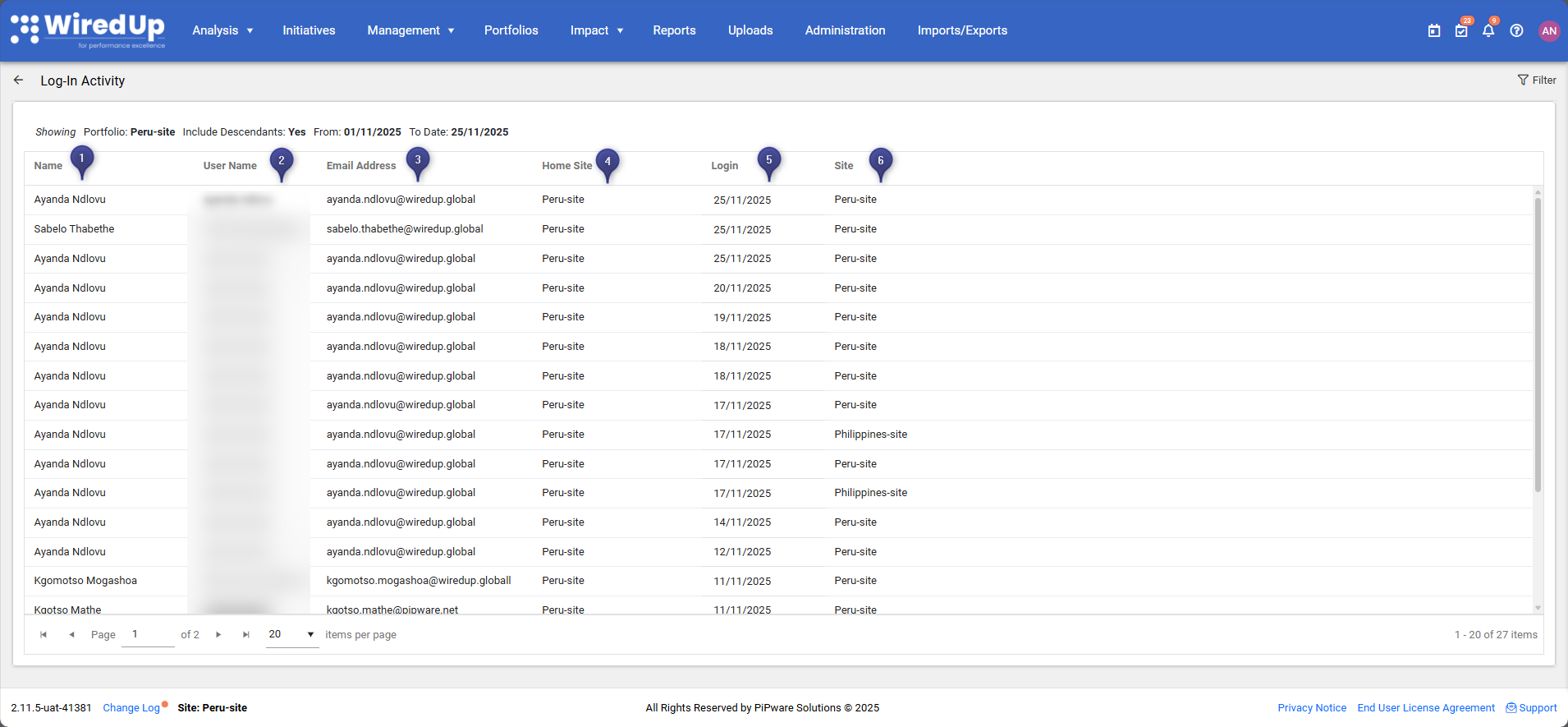
- Name: The full name of the user who logged into the system
- User Name: The username or login ID used to access the system
- Email Address: The email address associated with the user account
- Home Site: The primary site or portfolio to which the user belongs
- Login: The date when the user logged into the system (format: DD/MM/YYYY)
- Site: The specific site or portfolio the user accessed during that login session
Table Features
- Sorting: Click on any column header to sort the table by that column (ascending or descending order)
- Pagination: Use the pagination controls at the bottom of the table to navigate through multiple pages of results
- Items per page: Adjust the number of items displayed per page using the dropdown menu (default is 20 items per page)
- Total count: The bottom right of the table displays the total number of login records (e.g., "1 - 20 of 27 items")
Report Filters
The Log-In Activity Report includes several filters to customize the data displayed. These filters appear in the Filter panel on the right side of the screen when you click the Filter button.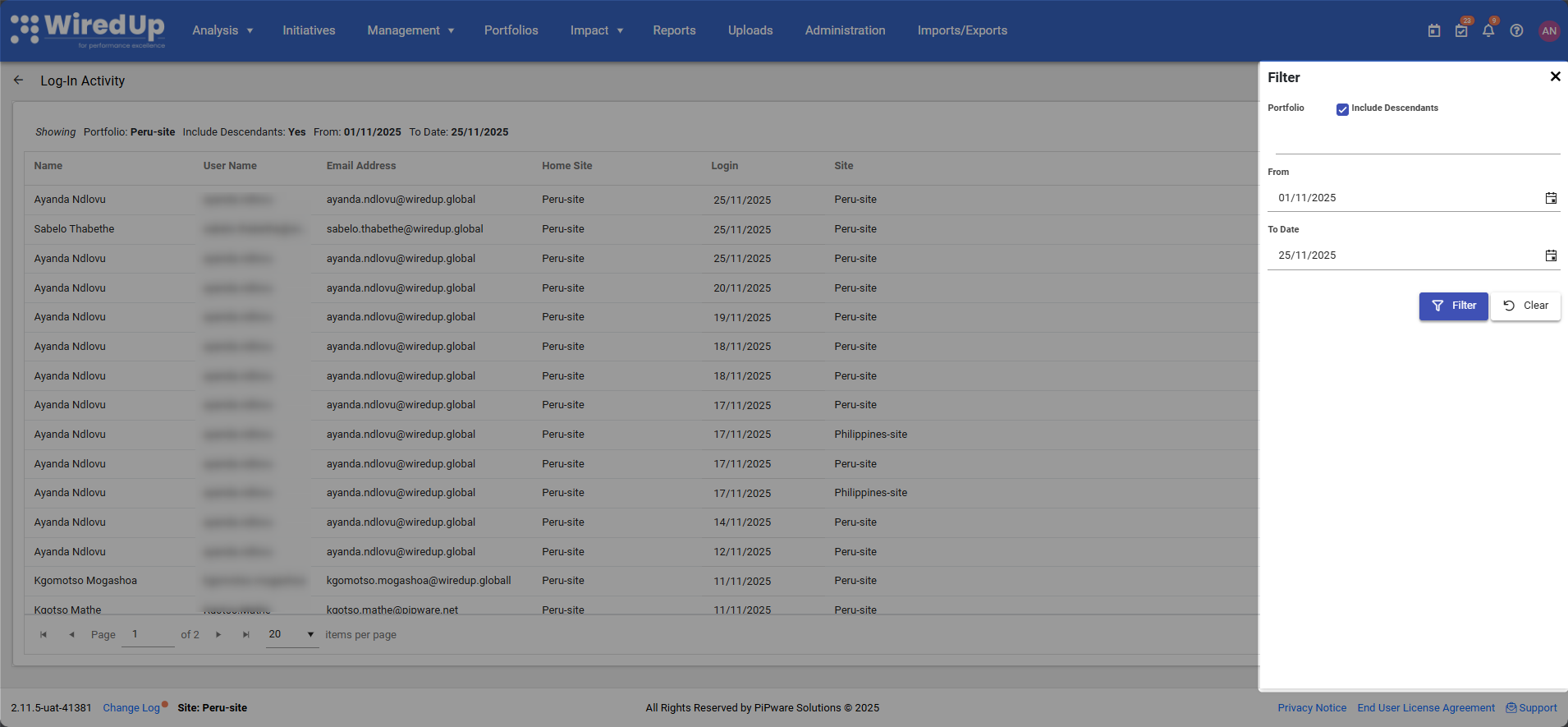
Applying and Clearing Filters:
- Click the Filter button (top-right corner) to apply your selected filter criteria
- Click the Clear button to reset all filters to their default values
- When no filters are applied, the message "No filter" appears at the top of the report
- Once filters have been applied, they will be displayed at the top of the report in a summary Showing the selected filter criteria
Available Filters:
Portfolio
- Select the specific portfolio, department, or site to view login activity for users belonging to that organizational area
- Include Descendants checkbox: When enabled, includes login activity for users from all sub-portfolios and departments under the selected portfolio
- Allows you to focus on login activity from specific organizational areas
From
- Select the start date for the login activity period you want to view
- Format: DD/MM/YYYY
- Filters login records to show only activity from this date onwards
To Date
- Select the end date for the login activity period you want to view
- Format: DD/MM/YYYY
- Filters login records to show only activity up to and including this date
Best Practices
- Review the report regularly to monitor user engagement and system usage patterns
- Use date filters to analyze login activity for specific time periods, such as monthly or quarterly reviews
- Sort by Login date to identify the most recent user activity or find users who haven't logged in recently
- Filter by Portfolio to monitor login activity across different organizational areas or departments
- Track inactive users by sorting by Login date and identifying users with no recent activity
- Verify user access by comparing the Home Site and Site columns to ensure users are accessing appropriate areas
- Use for security audits by reviewing login patterns to identify any unusual or unauthorized access attempts
- Support user onboarding by checking that new users are successfully logging in and accessing the system
- Monitor compliance with organizational policies regarding system access and usage requirements
Related Articles
You may also find these related articles helpful:
- User Access and Permissions
- Administration - User Management
- All Activities Report
- User Unavailability Report