
In This Article
Accessing the Meeting Effectiveness Report
Overview
The Meeting Effectiveness Report provides time series charts highlighting overall meeting effectiveness for individual meetings over a specified period. This report helps managers and administrators monitor whether specific meetings are meeting their effectiveness targets by displaying actual effectiveness percentages against meeting-specific targets across multiple periods. The report uses color-coded bar charts and target lines to quickly identify meetings that are meeting or missing their effectiveness goals.
The report is particularly useful for tracking individual meeting effectiveness trends over time, identifying specific meetings that consistently meet or miss effectiveness targets, monitoring progress toward meeting-specific goals, and supporting continuous improvement in meeting quality.
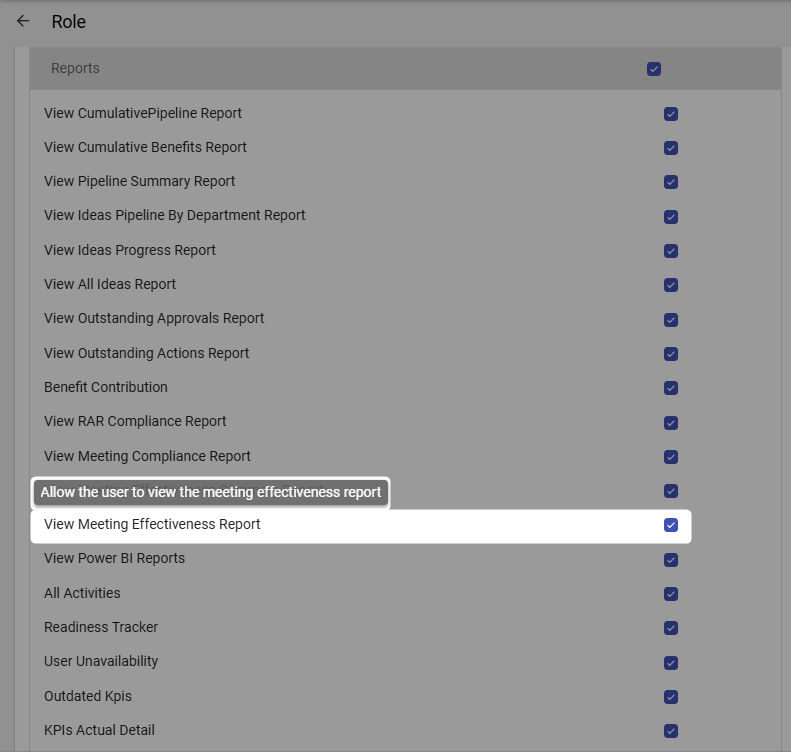
Note: Users need the View Meeting Effectiveness Report permission enabled in their role under Reports to be able to access and use this report. If you cannot view this report, please contact your system administrator to verify your permissions.
Accessing the Meeting Effectiveness Report
To access the Meeting Effectiveness Report:
- Navigate to the Reports module from the top navigation bar
- Select Meeting Effectiveness from the list of available reports
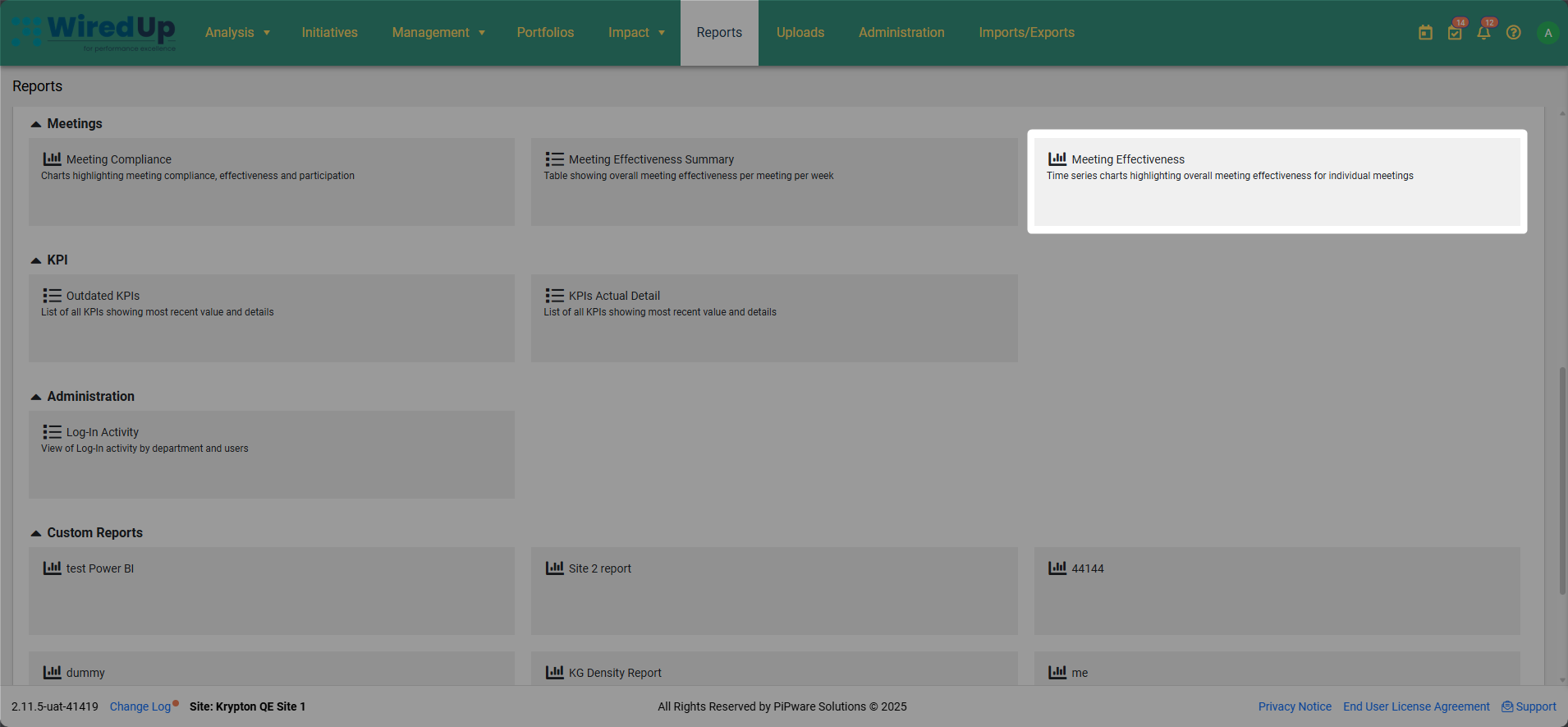
- The report will display with default filters applied (Report Date set to today's date and Periods set to 7), showing individual charts for each meeting
Understanding the Report
The Meeting Effectiveness Report consists of multiple individual charts, one for each meeting that occurred during the specified reporting period.
Individual Meeting Charts
Each meeting is displayed in its own chart with the following elements: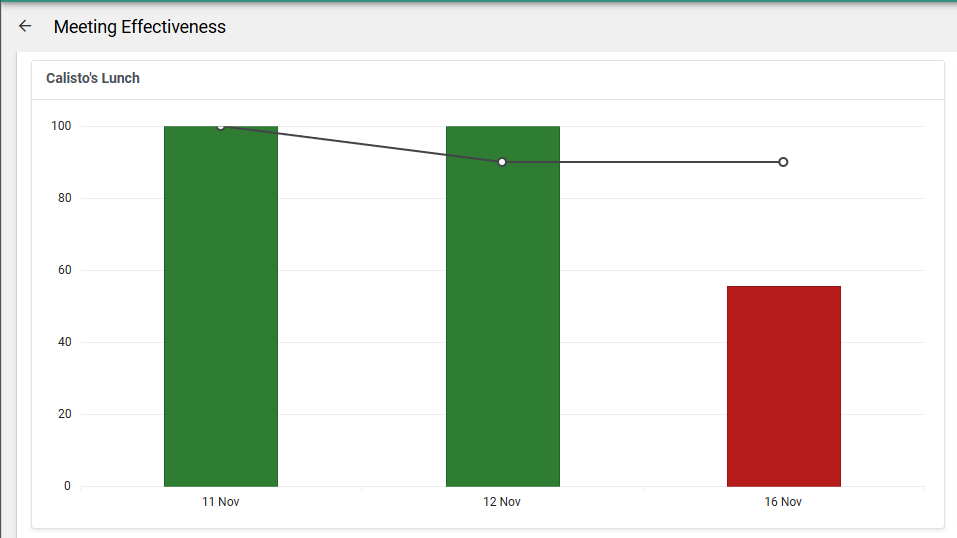
Chart Title:
- The name of the meeting appears at the top of each chart
Chart Components:
- Bar Chart: Represents the actual meeting effectiveness percentage for each occurrence
- Green bars: The meeting effectiveness percentage met or exceeded the target for that occurrence
- Red bars: The meeting effectiveness percentage fell below the target for that occurrence
- Line Chart (with circular markers): Represents the target effectiveness percentage set for the meeting
- Y-axis: Effectiveness percentage (0-100%)
- X-axis: Date of each meeting occurrence
Note: Meeting effectiveness targets are configured individually for each meeting in Meetings > Edit Meeting > Targets.
Chart Display Logic
- Only meetings that occurred during the specified period and report date are displayed in the report
- Each meeting gets its own separate chart showing its effectiveness trend
- Multiple occurrences of the same meeting are shown as separate bars on the same chart
Report Filters
The Meeting Effectiveness Report includes several filters to customize the data displayed. These filters appear in the Filter panel on the right side of the screen when you click the Filter button.
Applying and Clearing Filters:
- Click the Filter button (top-right corner) to apply your selected filter criteria
- Click the Clear button to reset all filters to their default values
- Applied filters will update the report to display only the selected meetings and periods
Available Filters:
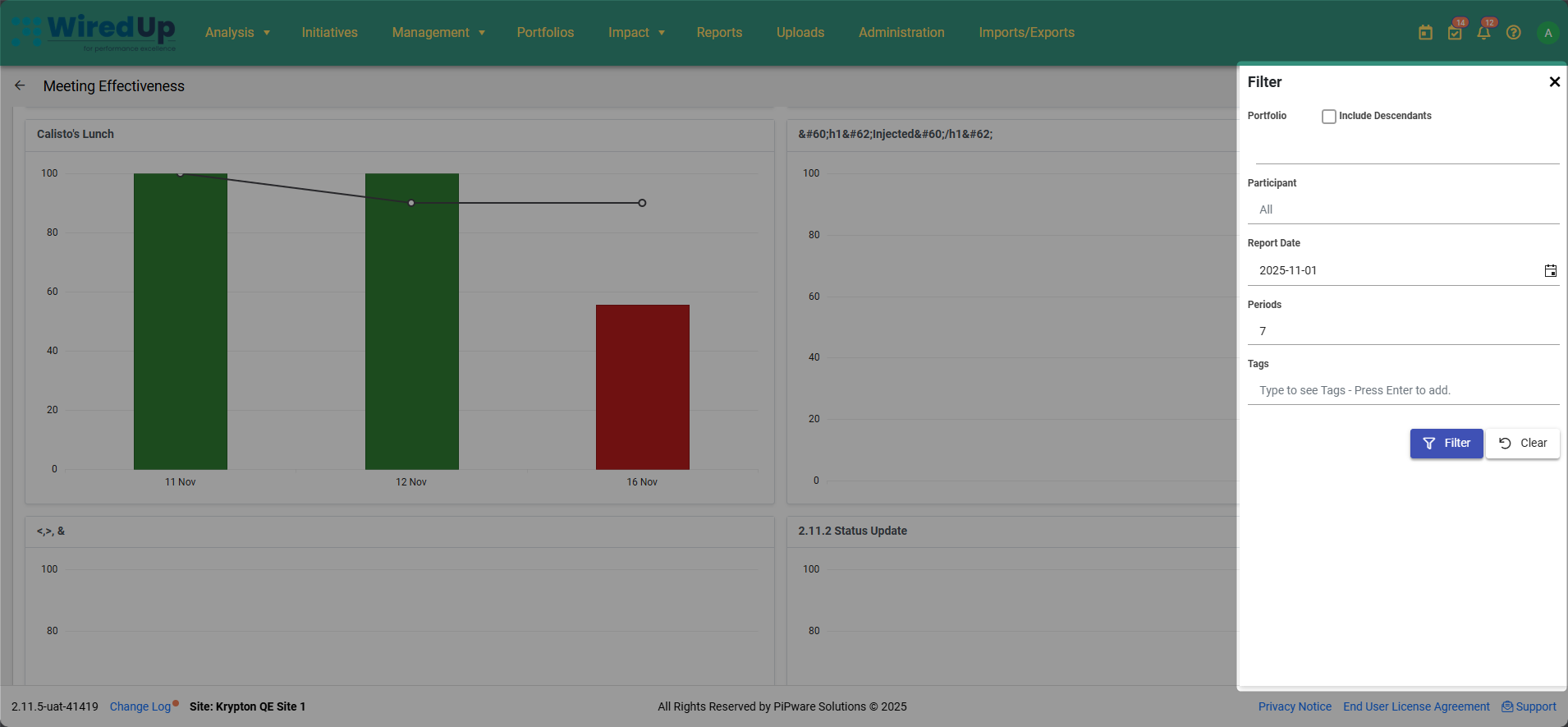
Portfolio
- Select the specific portfolio or department to view
- Include Descendants checkbox: When enabled, includes meetings from all sub-portfolios and departments under the selected portfolio
- Allows you to focus on meeting effectiveness from specific organizational areas
Participant
- Filter by specific meeting participants
- Default setting shows "All" participants
- Helps track meeting effectiveness for meetings involving specific individuals
Report Date
- Select the from date for the reporting period
- Default setting is today's date (format: YYYY-MM-DD)
- The report will display data for the specified number of periods from this date
Periods
- Specify the number of periods (weeks) to include in the report
- Default setting is 7 periods
- Determines the timeframe for which meeting data is displayed
Tags
- Filter meetings by associated tags
- Type to search for tags and press Enter to add
- Useful for analyzing effectiveness for meetings with specific classifications or categories
Downloading the Report
The Meeting Effectiveness Report can be exported for offline viewing, sharing, or further analysis: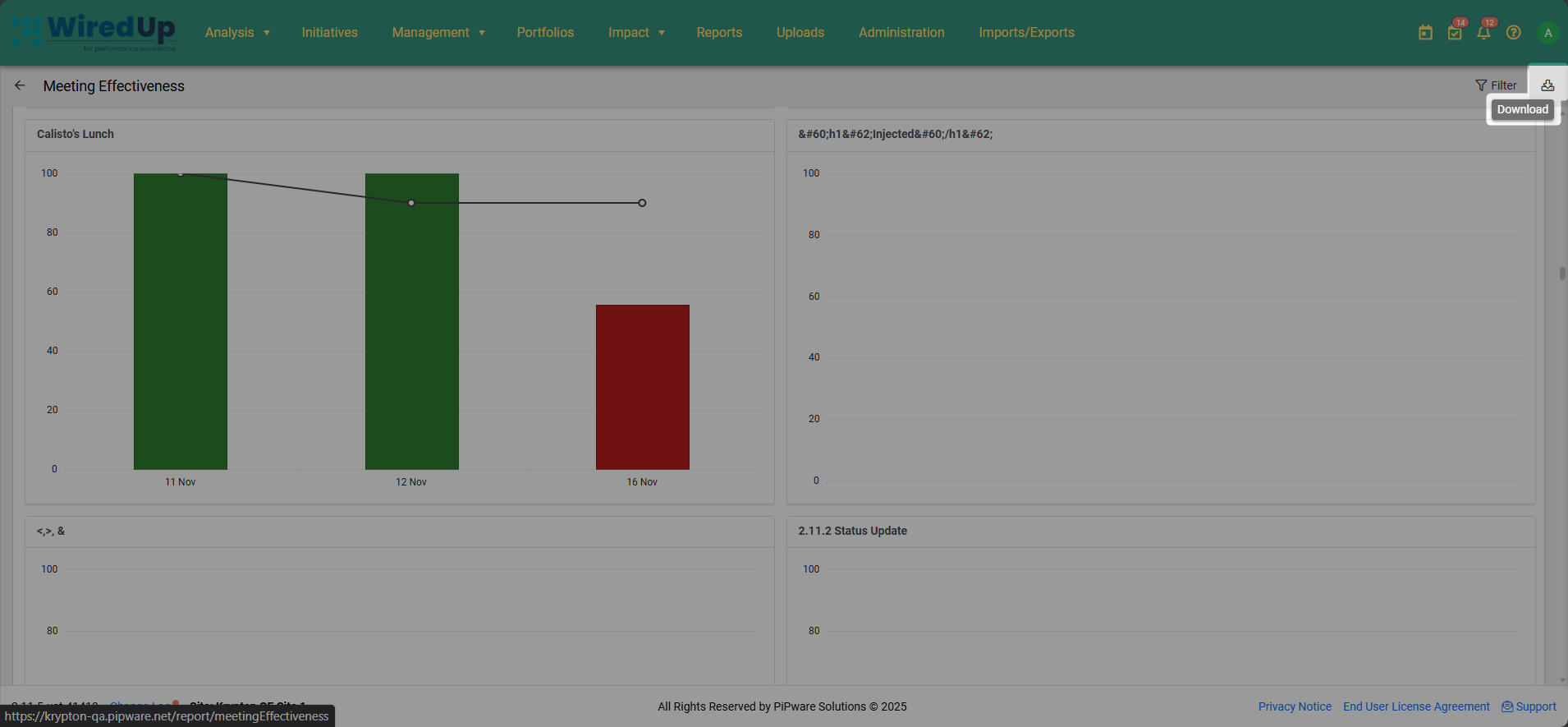
- Click the Download button in the top-right corner of the report
- The report will be exported in Excel format
- The downloaded file will include all currently applied filters and all visible meeting effectiveness charts
The Excel export allows you to:
- Perform additional analysis on meeting effectiveness data
- Share the report with stakeholders who may not have system access
- Track meeting effectiveness trends over time by saving periodic exports
- Create custom reports or presentations using the exported data
- Conduct detailed analysis on individual meeting performance patterns
- Maintain historical records of meeting effectiveness
Best Practices
- Review the report regularly to monitor individual meeting effectiveness trends and identify meetings requiring improvement
- Focus on red bars to identify specific meeting occurrences that missed effectiveness targets
- Use Portfolio filters to analyze meeting effectiveness across different organizational areas
- Filter by Participant to track effectiveness for meetings involving specific individuals
- Adjust the Periods filter to view longer-term trends or focus on recent performance
- Review meeting-specific targets to ensure they remain appropriate and achievable
- Download and archive reports periodically to maintain historical records of meeting effectiveness
- Use the report in management meetings to discuss specific meeting quality and identify improvement opportunities
- Set improvement goals for underperforming meetings and track progress over subsequent reporting periods
Related Articles
You may also find these related articles helpful:
- Meeting Compliance Report
- Meeting Effectiveness Summary Report
- Meetings Module
- Setting Meeting Targets