In This Article
Overview
Person Positions is an Administration feature that allows you to create and manage a list of organizational positions or job titles within the WiredUp system. These positions can be assigned to users in the system and are used to define organizational hierarchy and reporting structures. Person Positions help organizations maintain clear role definitions, support organizational structure management, and enable position-based filtering and reporting throughout the system.
The feature is particularly useful for defining organizational hierarchies, assigning positions to users, maintaining consistent job titles across the organization, and supporting position-based access control and reporting.
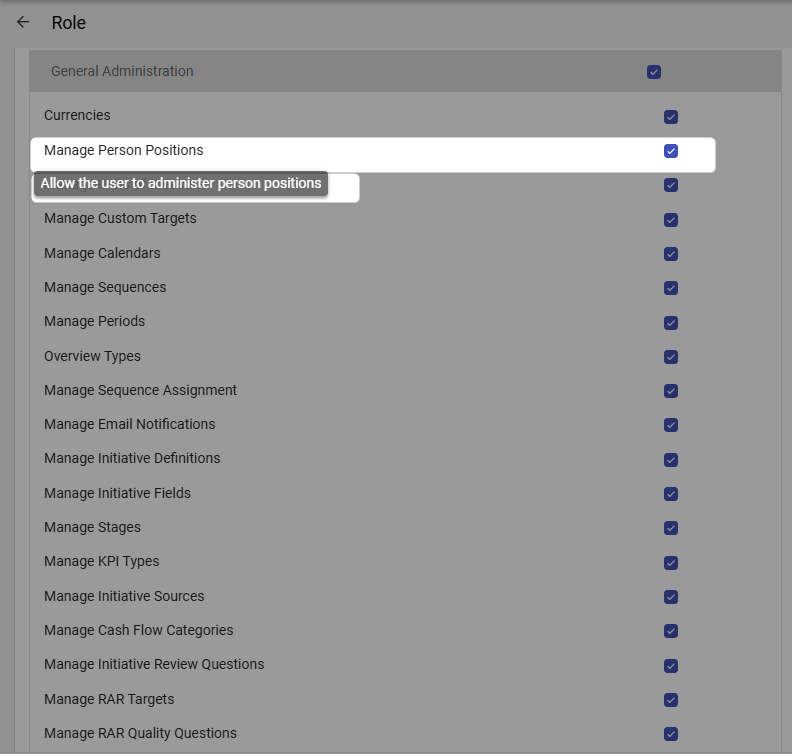
Note: Users need the Manage Person Positions permission enabled in their role under General Administration to be able to access and manage person positions. If you cannot access this feature, please contact your system administrator to verify your permissions.
Accessing Person Positions
To access Person Positions:
- Navigate to the Administration module from the top navigation bar
- Under the General section, click on Person Positions
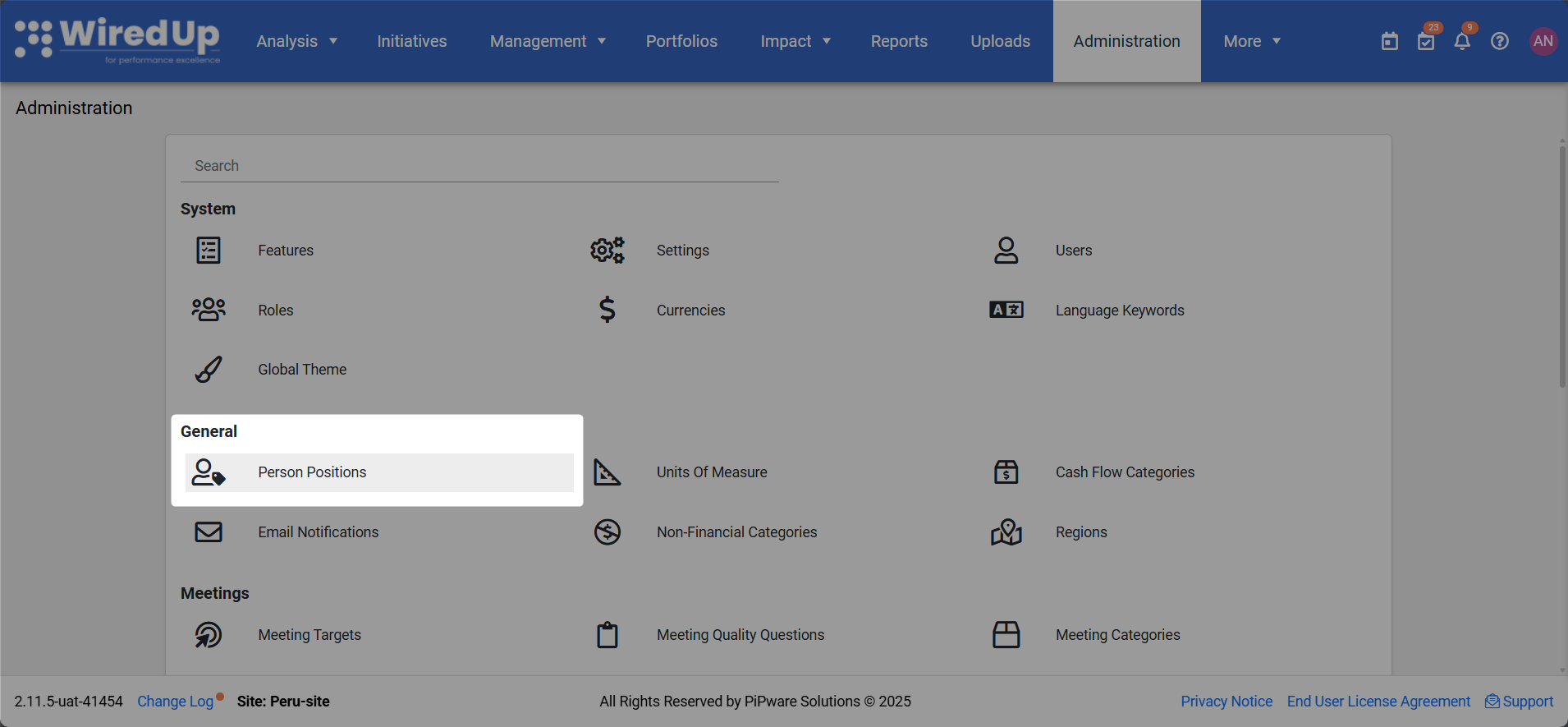
- The Person Positions page will display, showing a list of all configured positions in a hierarchical structure
Understanding Person Positions
The Person Positions page displays all organizational positions in a hierarchical list format, allowing you to view, add, edit, and delete positions.
Page Controls
At the top of the Person Positions page, you will find the following controls: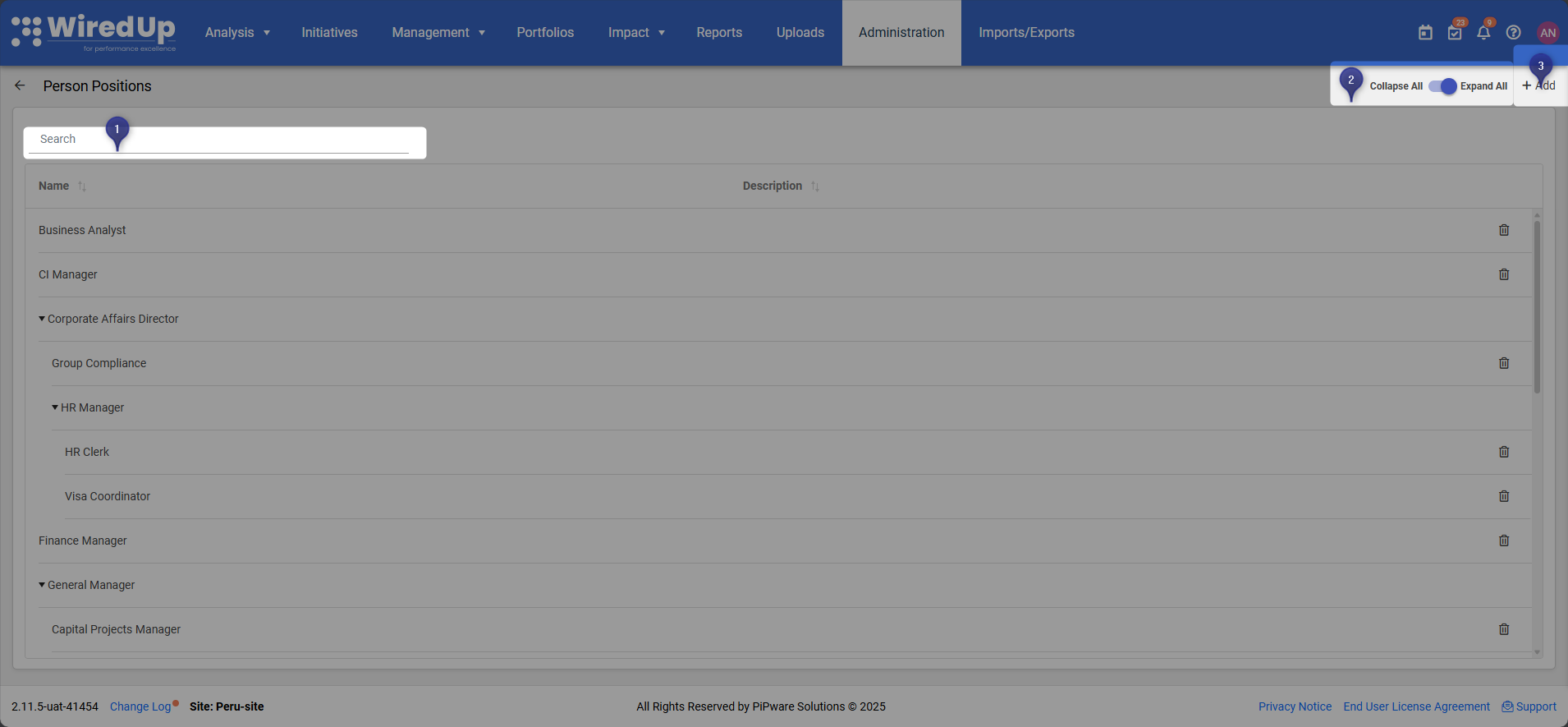
- Search: Enter text to search for specific person positions by name
- Collapse All / Expand All: Toggle button to collapse or expand all hierarchical levels in the position list
- + Add: Click to add a new person position to the system
Position List
The positions are displayed in a table format with the following columns: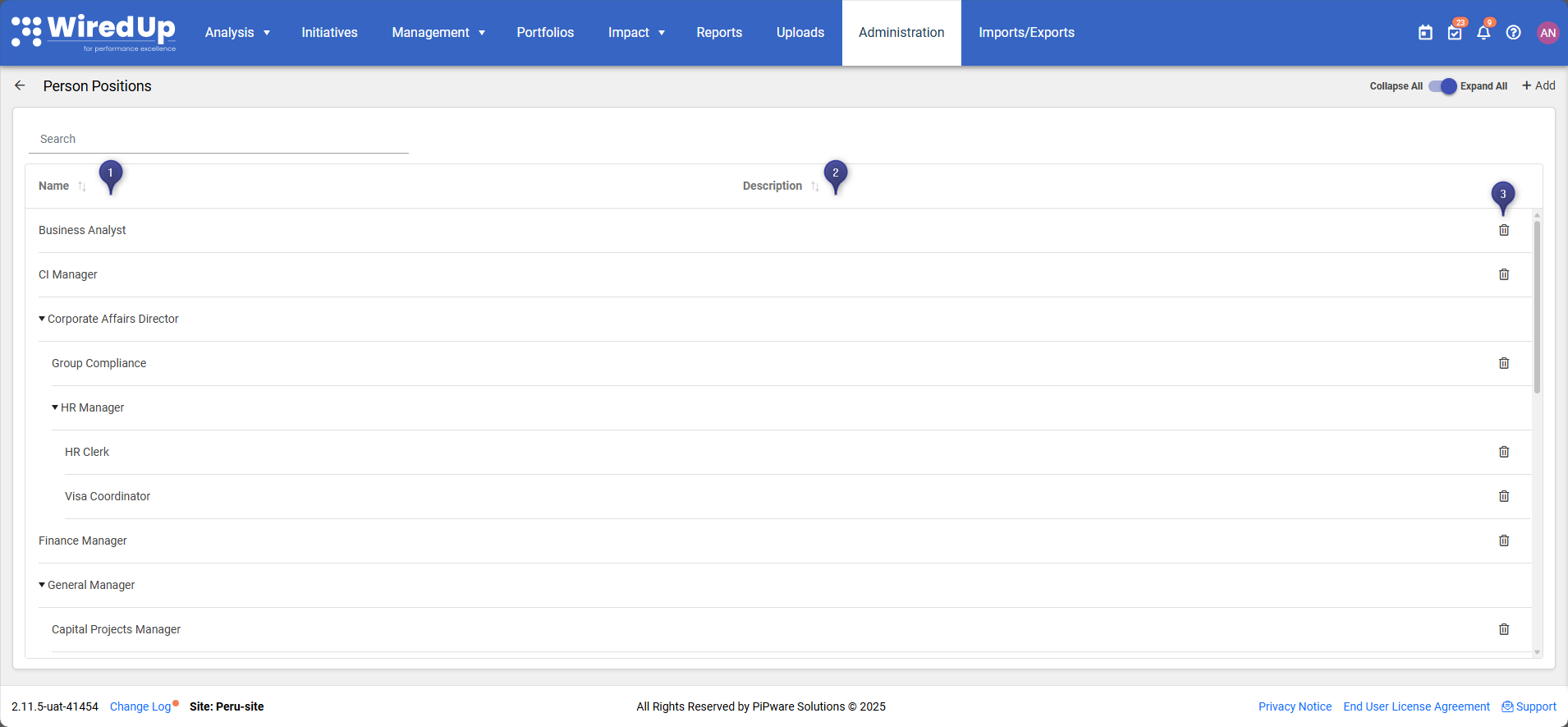
- Name: The name of the person position (e.g., Administrator, HR Manager, Finance Manager)
- Click on the Name column header to sort the list alphabetically
- Positions with child positions can be expanded or collapsed using the arrow icon
- Description: A brief description of the person position and its responsibilities
- Click on the Description column header to sort the list by description
- Delete Icon: Click the bin icon on the right side of each row to delete the person position
Adding a New Person Position
To add a new person position:
- Click the + Add button at the top-right of the page
- The "Add New Person Position" dialog will appear with the following fields:
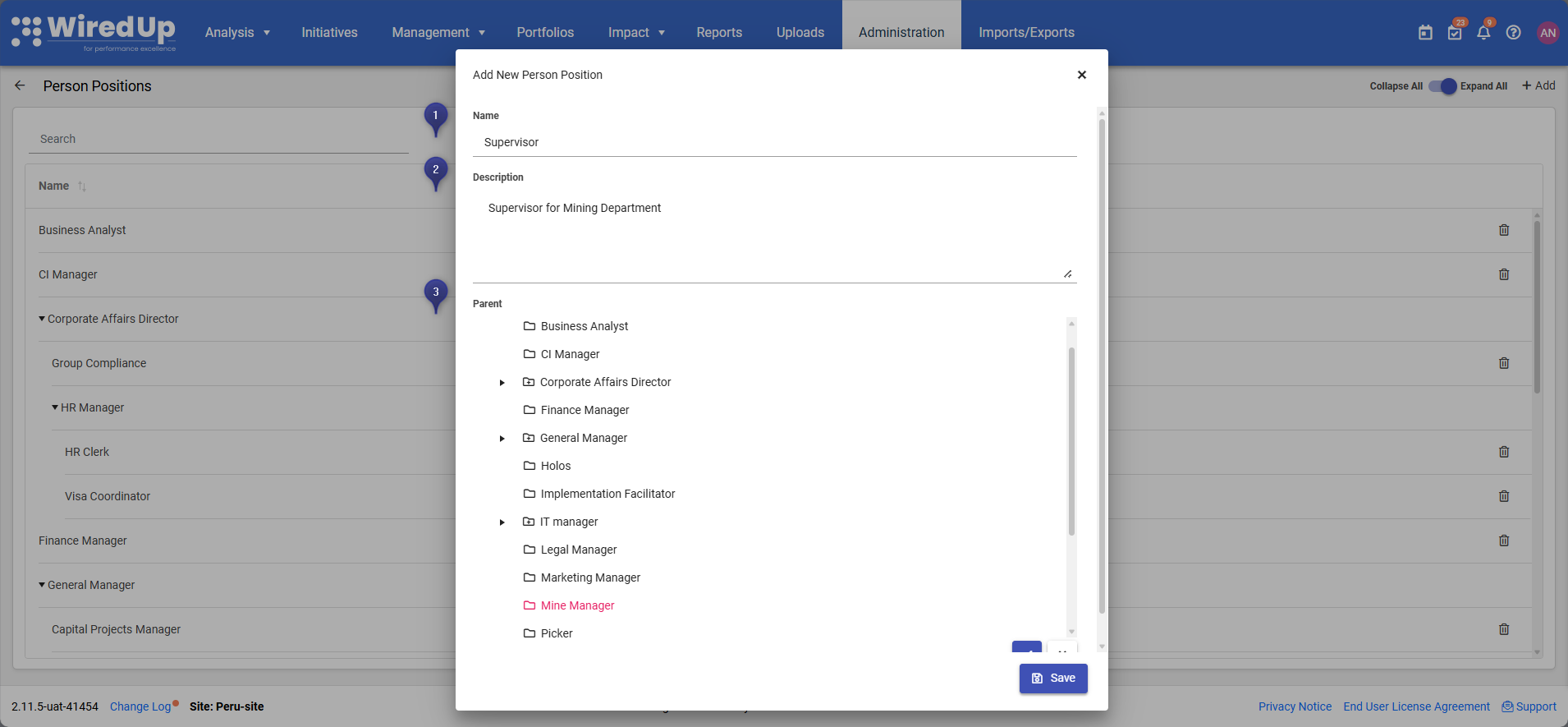
1. Name
- Enter the name of the person position (e.g., "Project Manager", "Team Lead")
- This field is required
2. Description
- Enter a description of the person position and its responsibilities
- This field is optional but recommended for clarity
3. Parent
- Select the parent position from the hierarchical tree structure
- Choose "Home" if this is a top-level position with no parent
- Expand parent positions using the arrow icons to view and select child positions
- This defines where the position sits in the organizational hierarchy
- Click Save to create the new person position
The new position will appear in the list according to its hierarchical placement.
Editing a Person Position
To edit an existing person position: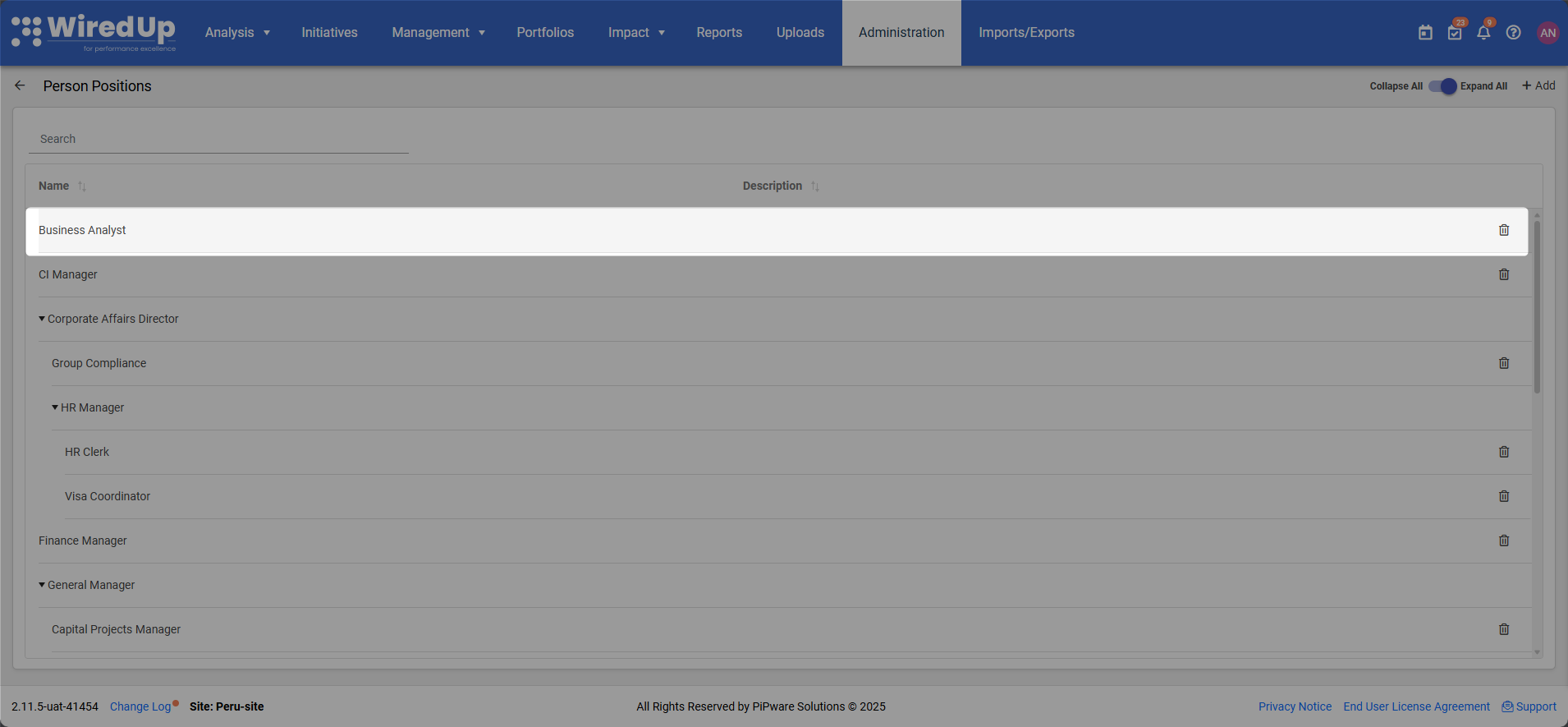
- Click on the person position name in the list
- The edit dialog will appear with the same fields as the Add dialog
- Modify the Name, Description, or Parent as needed
- Click Save to update the person position
Deleting a Person Position
To delete a person position: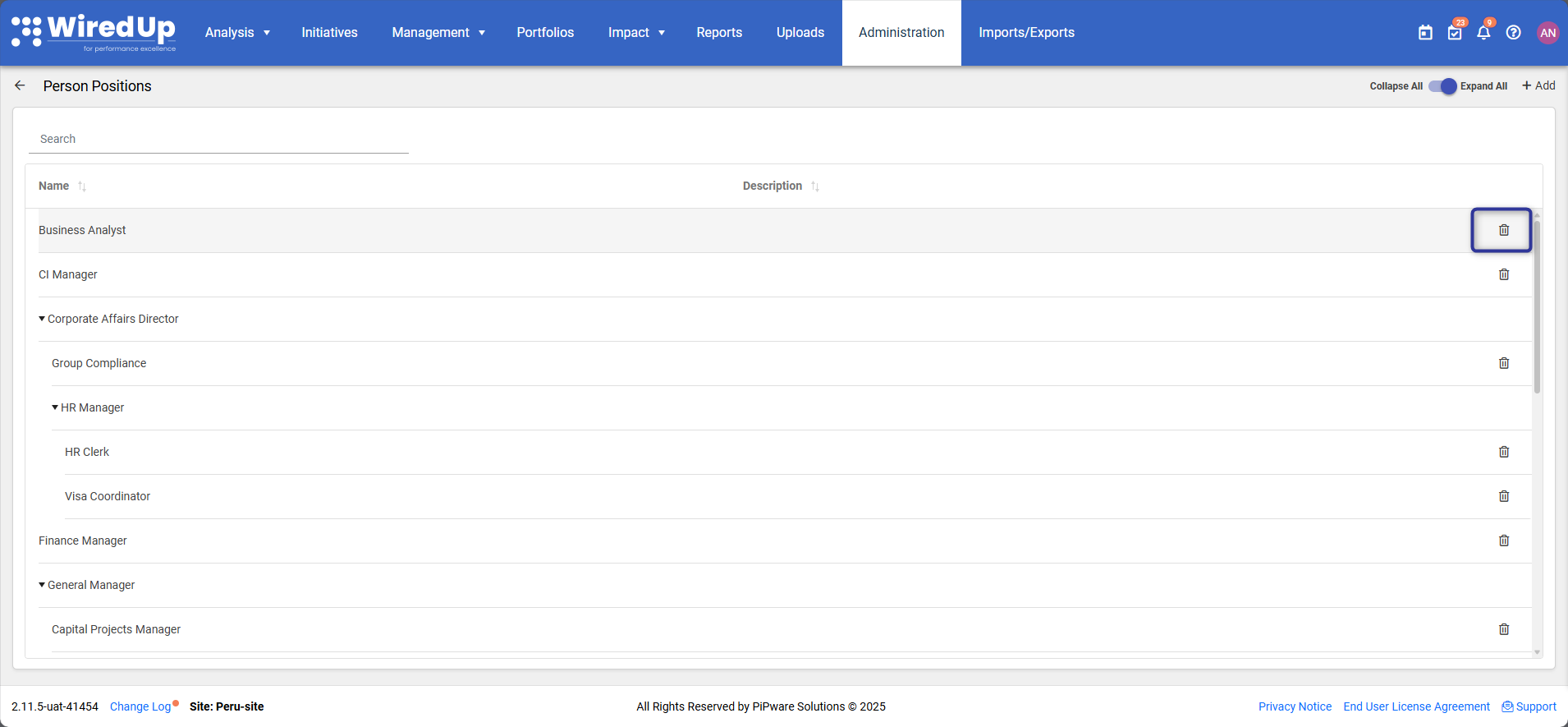
- Click the bin icon on the right side of the position row
- Confirm the deletion when prompted
Using Person Positions
Once person positions are configured, they can be assigned to users: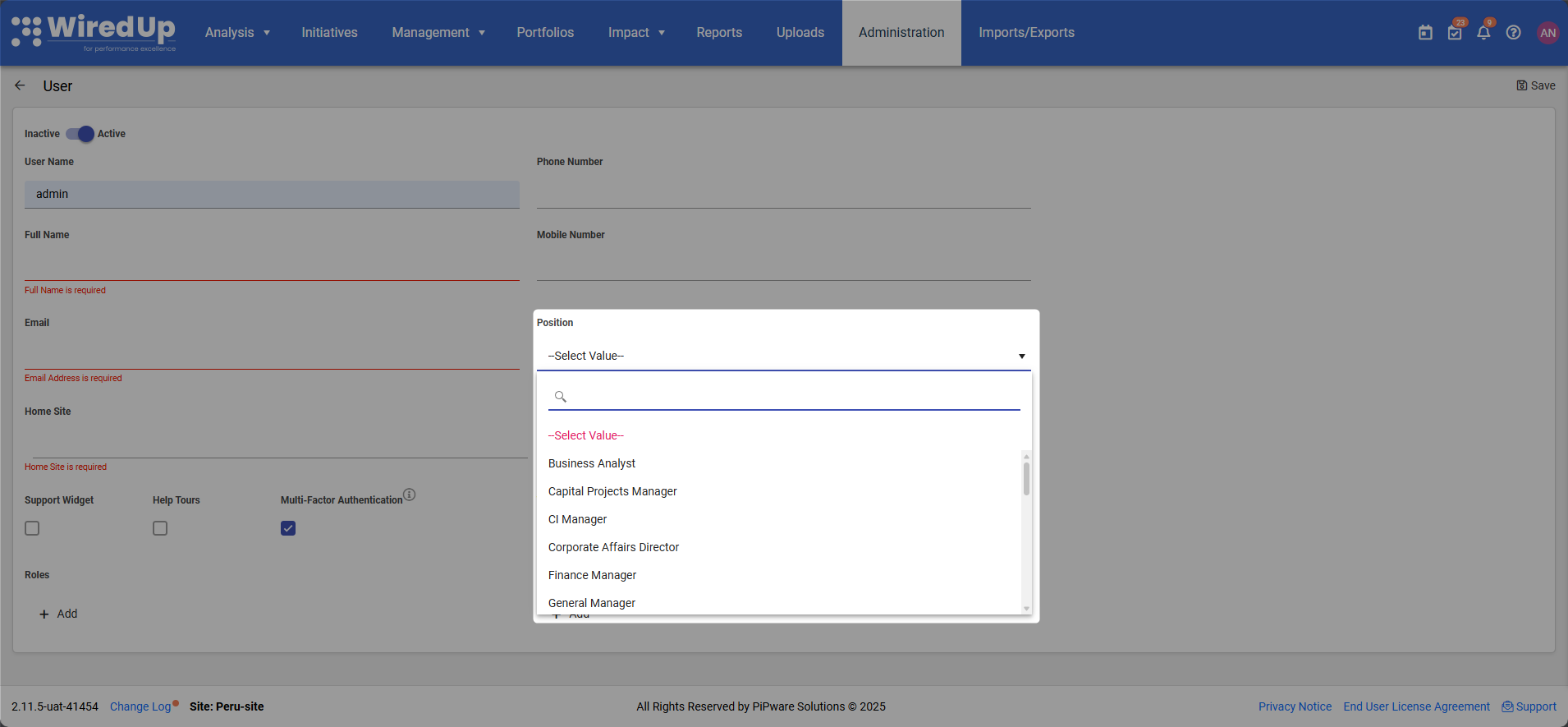
- Navigate to Administration > Users
- Select a user to edit or create a new user
- Assign the appropriate person position to the user from the options displayed on Position
Best Practices
- Create a clear hierarchy that reflects your organization's actual reporting structure
- Use consistent naming conventions for person positions across the organization
- Add descriptions to provide clarity on the responsibilities and scope of each position
- Review and update positions regularly to ensure they remain aligned with organizational changes
- Use meaningful position names that are easily understood by all users
- Document position responsibilities in the description field to provide context for users
- Communicate changes to users when person positions are added, modified, or removed
Related Articles
Based on the knowledge base, you may also find these related articles helpful:
- User Management
- Roles and Permissions
- Organizational Structure
- Administration Settings