
In This Article
Configuring the Severity Matrix
Overview
The Severity Matrix is an Administration feature that allows you to configure and manage the risk severity assessment framework used throughout the WiredUp system. This matrix is used to measure and visualize the severity of idea/initiative risks by combining probability and consequence ratings. The Severity Matrix provides a standardized approach to risk assessment, helping organizations consistently evaluate and prioritize risks across all ideas/initiatives. The configured matrix is displayed wherever risk assessment is required in the system, including the Risk Report, idea/initiative risk pages, and risk-related dashboards.
The feature is particularly useful for standardizing risk assessment across the organization, providing visual representation of risk levels, supporting consistent risk prioritization, and enabling effective risk management decision-making.
Note: Users need the Manage Severities permission enabled in their role under General Administration to be able to access and configure the Severity Matrix. If you cannot access this feature, please contact your system administrator to verify your permissions.
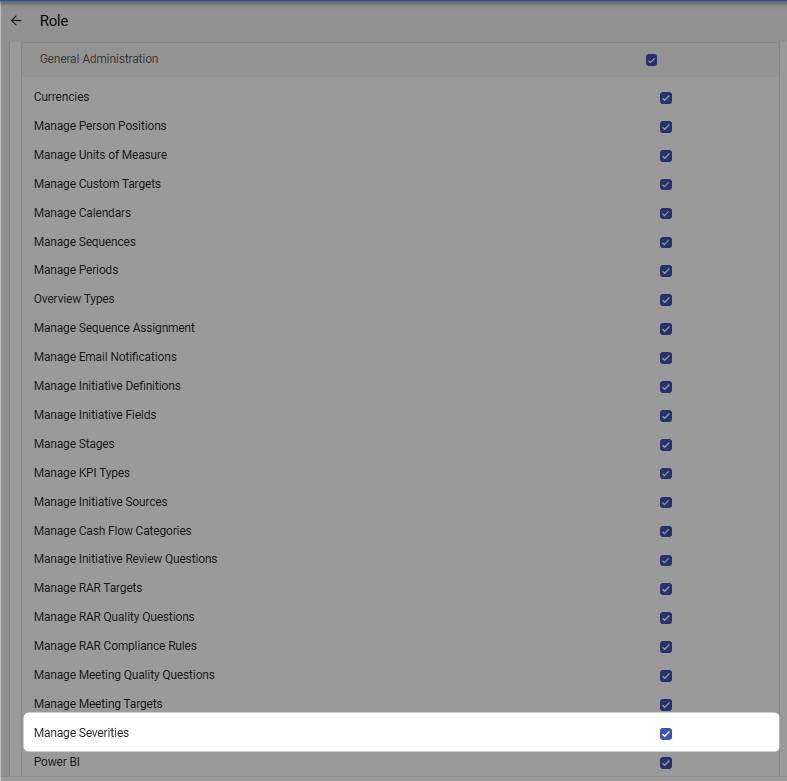
Accessing Severity Matrix
To access the Severity Matrix configuration:
- Navigate to the Administration module from the top navigation bar
- Under the Risk group, click on Severities to configure severity levels
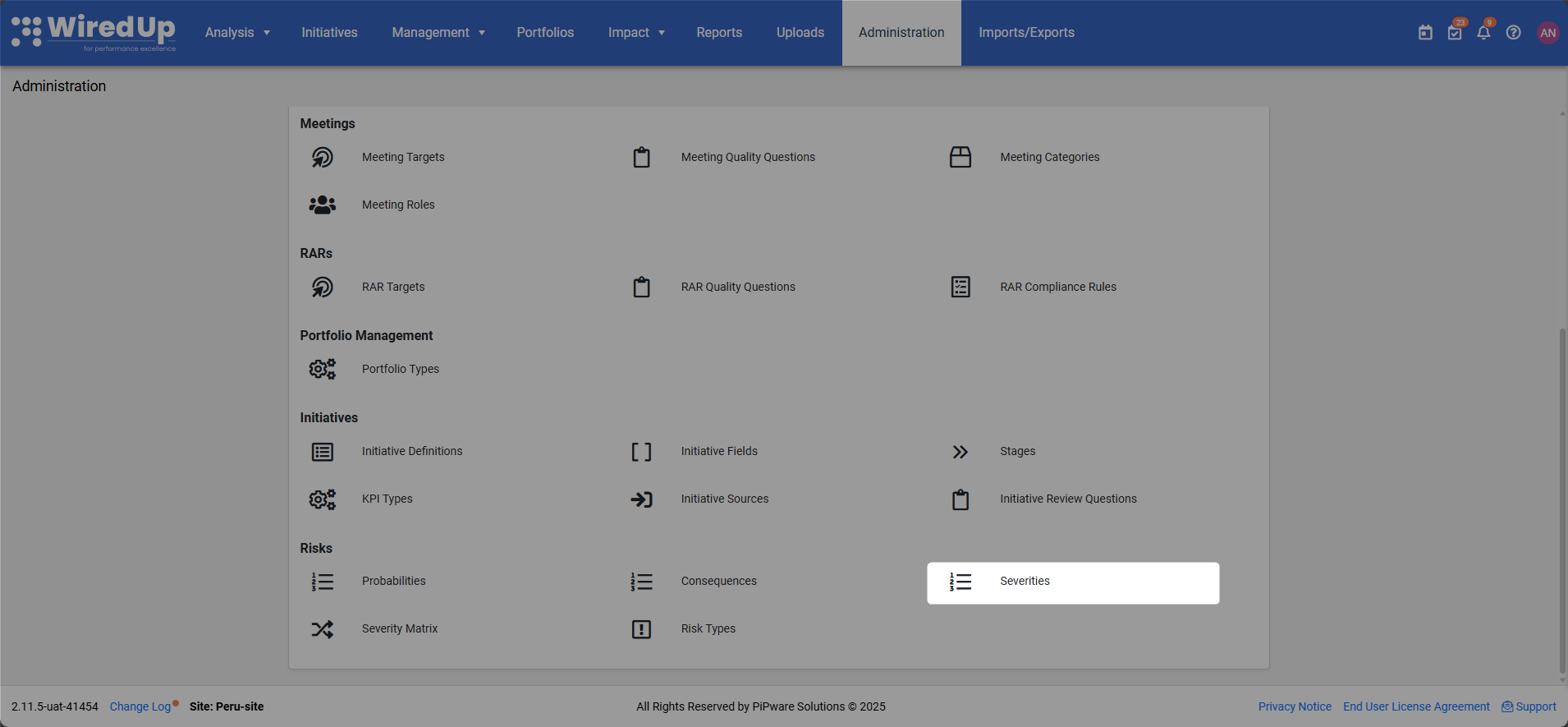
- Click on Severity Matrix to configure the risk assessment matrix

Understanding Severity Levels
Before configuring the Severity Matrix, you must first define the severity levels that will be used in the matrix.
Severities Configuration
The Severities page displays all configured severity levels in a table format with the following columns: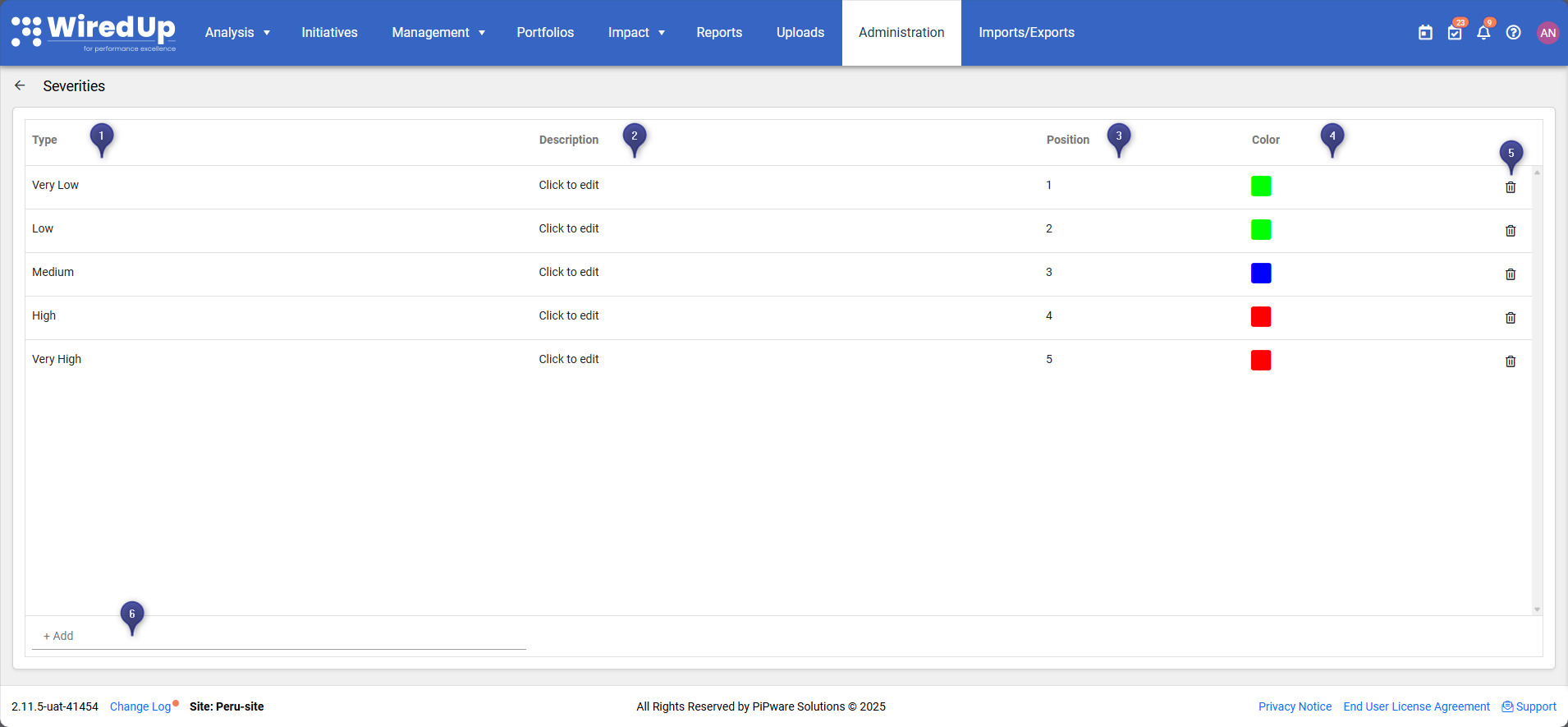
- Type: The name of the severity level (e.g., Very Low, Low, Medium, High, Very High)
- Description: A description of what the severity level represents
- Position: The numerical order of the severity level (1 being the lowest, 5 being the highest)
- Color: The color assigned to the severity level for visual identification
- Delete Icon: Click the bin icon to delete a severity level
- Click the + Add button at the bottom of the Severities list
- Click on the severity level row in the table to edit an existing severity item
Configuring the Severity Matrix
The Severity Matrix defines how probability and consequence ratings combine to determine overall risk severity.
Matrix Structure
The Severity Matrix is displayed as a grid with: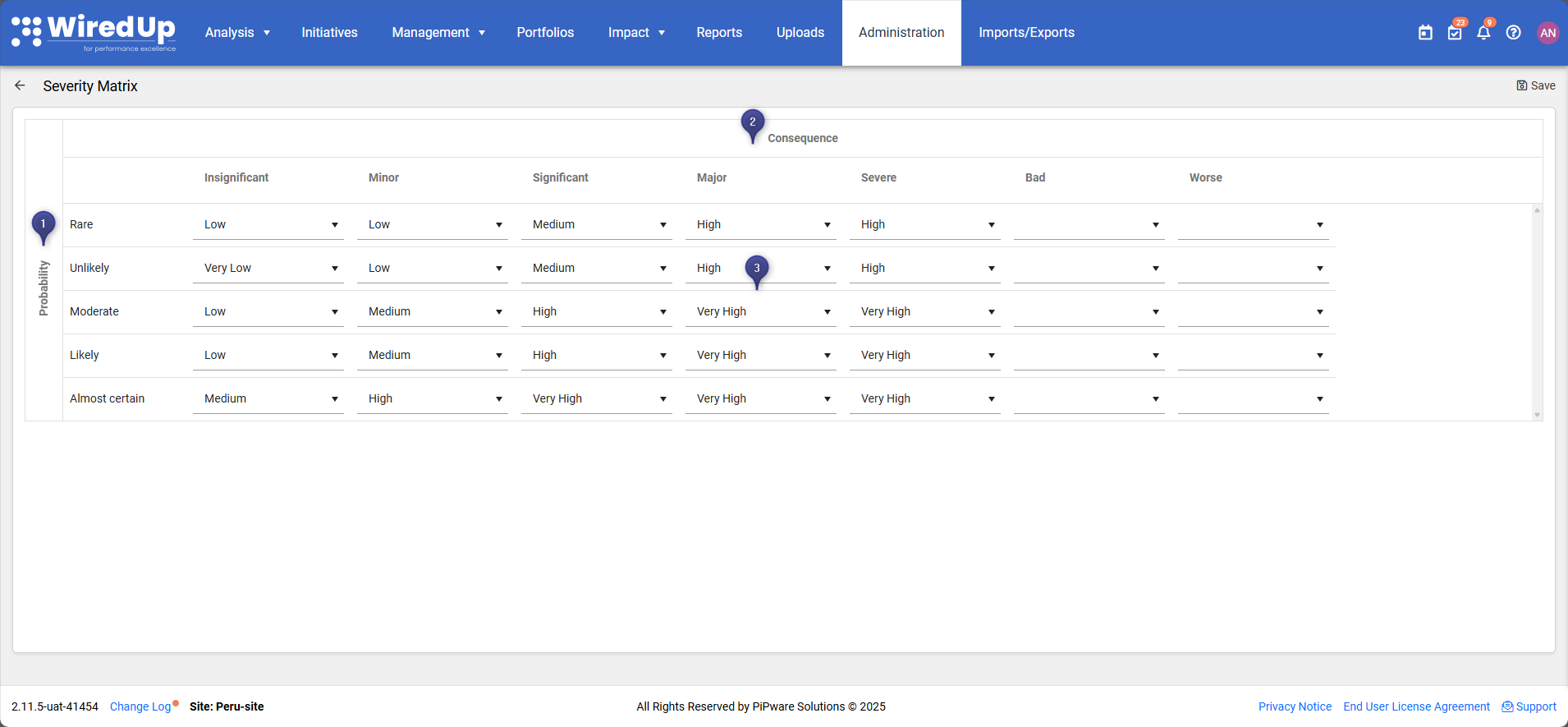
- Vertical Axis (Probability): Lists probability levels from lowest to highest (e.g., Rare, Unlikely, Moderate, Likely, Almost certain)
- Horizontal Axis (Consequence): Lists consequence levels from lowest to highest (e.g., Insignificant, Minor, Significant, Major, Severe, Bad, Worse)
- Matrix Cells: Each cell contains a dropdown to select the appropriate severity level for that probability/consequence combination
Risk Matrix Visualization
Once configured, the Risk Matrix is displayed throughout the system with: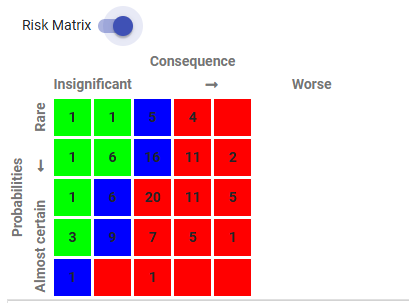
- Color-Coded Cells: Each cell is colored according to the severity level's assigned color
- Numerical Values: Some cells may display numerical values indicating the number of risks in that category
- Toggle Control: A Risk Matrix toggle allows users to show or hide the matrix visualization
- Axis Labels: Clear labels for Probability (vertical) and Consequence (horizontal) axes
Using the Severity Matrix
Once the Severity Matrix is configured, it is automatically used throughout the system:
In Idea/Initiative Risk Assessment
When users record risks for ideas/initiatives:
- They select a Consequence level (e.g., Minor, Major, Severe)
- They select a Probability level (e.g., Unlikely, Likely, Almost certain)
- The system automatically calculates the Severity based on the configured matrix
- The severity is displayed with the appropriate color coding
In Risk Reports
The Risk Report displays:
- The Risk Matrix visualization showing the distribution of risks
- Color-coded severity levels for easy identification
- The ability to filter risks by severity level
In Risk Dashboards
Risk-related dashboards and widgets use the Severity Matrix to:
- Visualize risk distribution across the organization
- Highlight high-severity risks requiring attention
- Provide consistent risk assessment across all ideas/initiatives
Best Practices
- Define clear severity levels that align with your organization's risk management framework
- Use consistent color coding that intuitively represents risk levels (e.g., green for low, red for high)
- Configure the matrix logically so that higher probability and consequence combinations result in higher severity
- Document severity definitions in the Description field to ensure consistent interpretation
- Review and update the matrix regularly to ensure it remains aligned with organizational risk tolerance
- Use standard severity levels (e.g., Very Low, Low, Medium, High, Very High) for consistency
- Ensure the matrix covers all combinations of probability and consequence to avoid gaps
- Consider industry standards when designing your severity matrix
- Communicate changes to users when the Severity Matrix is updated
Related Articles
Based on the knowledge base, you may also find these related articles helpful:
- Risk Report
- Idea/Initiative Risk Management
- Risk Configuration
- Administration Settings